
Printer Test Page: Print a Test Page Online in Color or Black & White
Print a free printer test page in one click to check ink, color, alignment and print quality. No download, no install. Works with HP, Canon, Epson and Brother printers on Windows, Mac and mobile.
Print at 100% / Actual size, not Fit to page. Available in A4 & US Letter.

Free to Print
Every test page is free. Print as many as you like, no sign-up needed.
No Software to Install
Print straight from your browser. Nothing to download or install.
A4 + US Letter PDFs
Every sheet is available in both A4 and US Letter sizes.
HP, Canon, Epson & Brother
Test pages made for the printers you actually own, from all major brands.
What Is a Printer Test Page?
A printer test page is a specially designed sheet that checks the health of your printer in a single print. Unlike a normal document, a test page is built from known patterns: solid color blocks, tint ramps that fade from dark to light, grayscale steps, fine lines, grids and text in different sizes. Because you know exactly what each part should look like, anything that prints differently tells you where the problem is. A missing color block points to one cartridge. White lines through a color point to blocked nozzles. Faded gray steps point to low ink, low toner or a draft setting. Blurry small text points to a print head that needs aligning.
There are three kinds of test page, and they check different things. The test page built into Windows or macOS is sent by your computer’s driver, so it proves your computer, driver and connection are working. The self-test or nozzle check built into the printer itself runs without a computer, so it proves the printer’s own hardware is working. An online test page like the ones on this site travels the same path as your real documents (browser, driver, connection and printer) and adds measured patterns that neither built-in page has: a 100 mm scale check, an edge test for margins, per-ink tint ramps and fine line pairs. Print a test page whenever you set up a new printer, fit a new cartridge, move a printer, or notice any change in print quality. One sheet can save a ruined print run, a wasted cartridge, or an unnecessary repair bill.
Which Test Page Should You Print?
• New or reconnected printer: the Color Test Page, or Black & White for a mono printer.
• Colors look wrong or washed out: the CMYK Test Page. Each ink gets a large patch, so the weak one stands out.
• White lines, bands or gaps: the Nozzle Check Page, then run head cleaning and print it again.
• One ink will not print: that ink’s own single-color page (cyan, magenta, yellow or black).
• Edges are cut off: the Color or Black & White page. Read the edge marks to learn your printer’s real margin.
• Prints come out the wrong size: check the 100 mm scale line; if it measures short, reprint at Actual size.
• Text is blurry or doubled: the Alignment Test Page, then run print head alignment.
Compare Printer Test Page Types
| Type | Best For | Key Elements | Recommended Printer Type |
|---|---|---|---|
| Colour | Everyday print-quality check | Colour blocks, tints, grayscale, fine text | Any colour inkjet or laser |
| Black & White | Mono printing and black-ink health | Solid black, grey steps, fine text | Mono laser or mono inkjet |
| CMYK | Finding a weak or missing ink | Large cyan, magenta, yellow, black patches | Colour inkjet or laser |
| Grayscale | Tone and shading accuracy | Smooth white-to-black steps | Any printer, inkjet or laser |
| RGB | Screen-to-print colour matching | Red, green and blue patches and blends | Colour inkjet or photo printer |
| Solid Black | Exposing streaks and faded black | Full page of solid black | Mono laser or mono inkjet |
| Single-colour | Testing one ink on its own | One ink: solid band, tints, fine lines | Any printer with that ink or toner |
| Rainbow / Colour Palette | Colour blending and calibration | Full spectrum sweep and swatches | Colour inkjet or photo printer |
| Alignment | Fixing doubled or stepped lines | Grids and line patterns | Any inkjet or laser |
| Calibration | Checking colour after changes | Before-and-after colour and shading | Colour inkjet or photo printer |
| Nozzle Check | Finding blocked nozzles | Fine line staircases for each ink | Inkjet only |
All Printer Test Pages
Six sheets cover almost every printer problem. The Color sheet is the all-round check most people need; the others isolate one thing at a time, one ink system, one colour model, or nothing but black. Start with Color, then use the specialist sheet your result points to.
Single Color Test Pages
When one color is suspect, do not waste all four inks proving it. A single-color sheet prints one ink and nothing else (a solid band, ten tints, fine staircases and text) so gaps, streaks and fading in that channel are unmistakable. Print one after a head cleaning, after fitting a new cartridge, or when a printer has sat unused for weeks and one ink needs to get flowing again.
Cyan Test Page
Cyan ink only: solid band, tints and fine lines.
Black Ink Test Page
Black ink only: solid block, tint ladder and lines.
Blue Test Page
Blue depth and vibrancy, mixed from cyan and magenta.
Magenta Test Page
Magenta ink only: solid band, tints and fine lines.
Red Test Page
Red tones rich and even, mixed from magenta and yellow.
Rainbow Test Page
A full spectrum sweep to spot breaks in color blending.
Yellow Test Page
Yellow ink only: solid band, tints and fine lines.
Green Test Page
Green tones balanced, mixed from cyan and yellow.
Color Palette Test Page
Extended swatches for checking calibration accuracy.
Diagnose a Printing Problem
Already know something is wrong? Skip the general check and go straight at the fault. Each sheet below is built to expose one specific problem (blocked nozzles, a misaligned print head, drifting colours) or to give you every sheet as a print-ready PDF.
Printer Test Pages by Brand
Every brand hides its test page in a different menu, and some built-in reports check less than they should. Pick your brand below for its test sheet and step-by-step instructions.
How to Print a Test Page on Your Brand
Here are the exact menu paths for the four big brands, the same steps used in our own print shop, each with a step diagram.
HP Printer Test Page
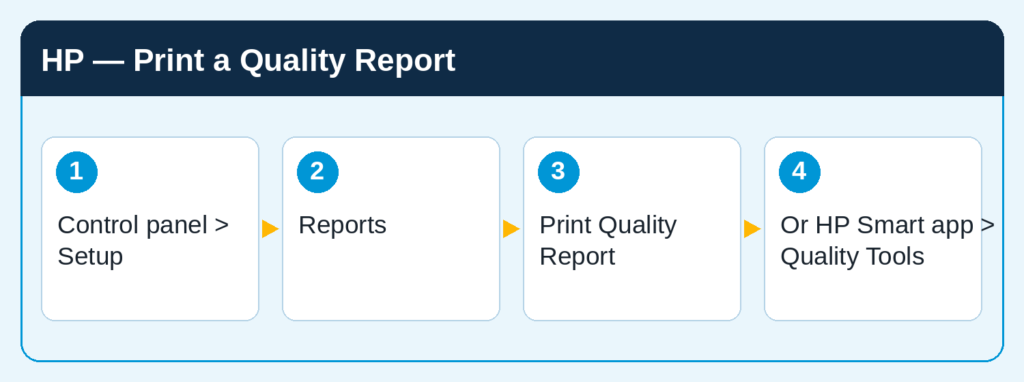
On most HP printers, open Setup on the control panel, then Reports, then Print Quality Report or Printer Status Report. In the HP Smart app, open your printer’s settings and find Print Quality Tools. Our HP test page adds what the built-in report does not: measured scale and edge checks, and the same sheet you can print on any other brand for a fair comparison.
Canon Printer Test Page
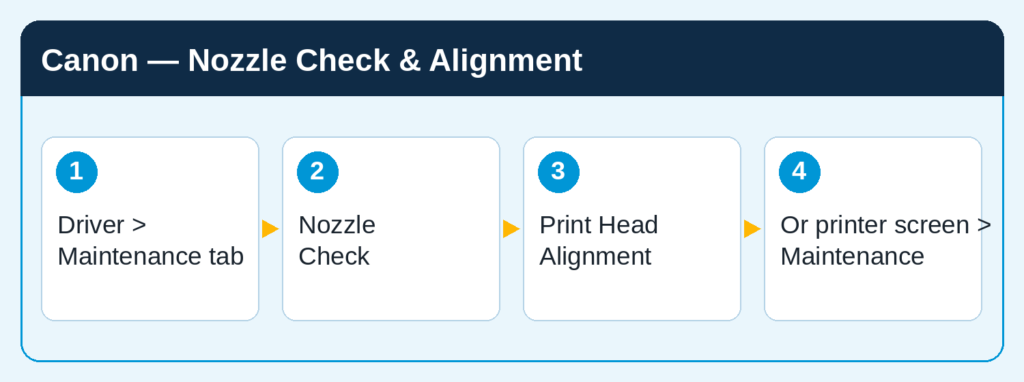
On Canon PIXMA and MAXIFY printers, open the Maintenance tab of the printer driver on Windows, or the Canon IJ Printer Utility on Mac, and choose Nozzle Check or Print Head Alignment. Printers with a screen have the same options in their Maintenance menu. Canon’s built-in pattern checks nozzles only; our Canon sheet adds solid coverage, grayscale and scale checks.
Epson Printer Test Page
On Epson printers, find Nozzle Check and Head Cleaning under Maintenance, on the control panel of EcoTank and WorkForce models, or the Maintenance tab of the Windows driver. Clean only while the nozzle check shows gaps, stop after a few cleanings, and let the printer rest before trying again, because every cleaning drinks ink. Print our Epson sheet before and after to judge the result honestly.

Brother Printer Test Page
On Brother printers, press Ink on the control panel, then Improve Print Quality, then Check Print Quality, and the printer produces its own test sheet and asks you to judge it. For laser models, a Printer Settings report serves the same purpose. Our Brother sheet gives you an independent second opinion with measured lines and margins.

How to Print a Test Page
You can print a test page from a computer, or straight from the printer’s own control panel with no computer at all. Here is each method, one by one, with the exact menu path.
On Windows 11 & 10
Settings > Bluetooth & devices > Printers & scanners, choose your printer, then Print test page. Or open Printer properties > General tab > Print Test Page.

On Mac
System Settings > Printers & Scanners, open the printer’s Print Queue, then choose Printer > Print Test Page from the menu.

From the Printer Itself
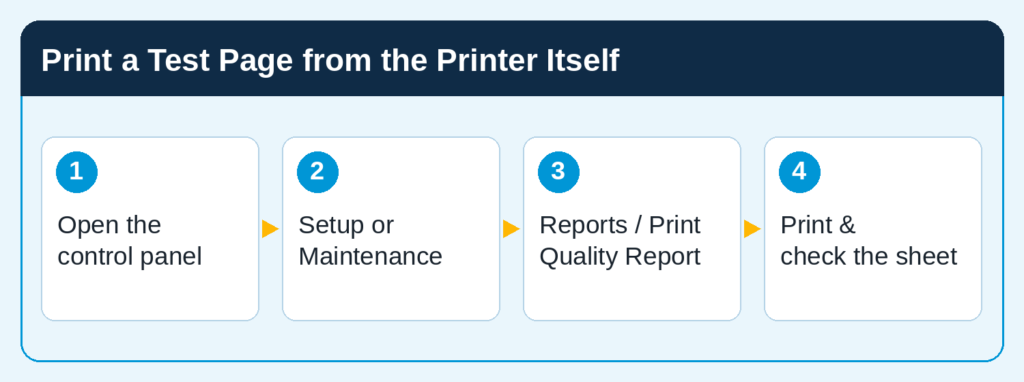
Use the control panel: HP: Setup > Reports; Epson & Canon: Maintenance menu; Brother: Ink > Improve Print Quality > Check Print Quality.
More Ways to Print a Test Page
Print a Test Page Online: the Fastest Way
Open the test page you want on this site, choose A4 or US Letter to match the paper in your tray, and press its Print button. Your browser’s print dialog opens: choose your printer, set the scale to 100 percent or Actual size, turn borderless printing off, and print. Nothing is installed and nothing is uploaded. The sheet is drawn in your browser and sent straight to your printer, exactly like a document.
On Android, iPhone, Linux and Chromebook
On a phone or tablet, open this page in your browser, tap Print on any test sheet, and choose your Wi-Fi printer in the system print sheet. On Linux, open Settings, then Printers, choose Properties and select Print Test Page, or simply print a sheet from this site. On a Chromebook, our online sheets are the simplest route of all: open, print, done.
How to Read Your Test Page
• White lines across a color: blocked nozzle. Run a nozzle check and head cleaning.
• One color missing completely: that cartridge is empty or blocked.
• Everything faint or washed out: low ink/toner or draft mode is on.
• Blurred or doubled text: the print head needs aligning.
• Everything prints too small: the page was scaled. Reprint at 100% / Actual size.
Solid inks and mixes: streaks or white lines inside a color patch mean a blocked nozzle on an inkjet, or low toner on a laser. A mix that looks wrong while its single inks look right (green printing blue, for example) points to one weak cartridge: the missing partner in the mix.
Tint ramps and grayscale: every step should differ from its neighbours. Light steps that vanish lose photo highlights; dark steps that merge lose shadow detail. Both are also symptoms of a draft or economy quality setting, so check that first before blaming the ink.
Fine lines and text: the finest line that prints unbroken, and the smallest text you can read cleanly, are your printer’s practical resolution, whatever the box claims. If fine lines wobble or double, the feed or the print head alignment is off.
Scale and edges: the printed 100 mm line must measure exactly 100 mm with a ruler. If it measures short, the page was scaled and every other measurement on the sheet is unreliable. Reprint at Actual size. The edge marks show the true unprintable margin of your machine, usually 3 to 5 mm.
• Missing colors. Likely cause: empty or clogged cartridge. First fix: print that ink’s single-color page, then clean or replace.
• Light or faint prints. Likely cause: low ink or toner, or draft mode. First fix: turn off draft/eco and check levels.
• Streaks or missing lines. Likely cause: blocked nozzles or dirty rollers. First fix: nozzle check and head cleaning.
• Wrong or shifted colors. Likely cause: weak cartridge or calibration error. First fix: print the CMYK page, then calibrate.
• Blurry or double text. Likely cause: print head misalignment. First fix: run the alignment utility and reprint.
• Crooked or skewed pages. Likely cause: paper loaded crooked. First fix: reload paper straight against the guides.
• Blank pages. Likely cause: empty cartridges or a driver error. First fix: check levels and print the printer’s own internal page.
• Page will not print at all. Likely cause: queue, connection or offline status. First fix: clear the queue and check Wi-Fi or USB.
Printer Test Page Troubleshooting
Most printing problems announce themselves on a test page before they ruin real work. Find your symptom below, try the first fix, and print the matching test sheet again to confirm the result.
Faded or Light Prints
Check the test page’s tint ramps first: if the light steps are missing, confirm the driver is set to Normal or High quality, not Draft or Eco, and that the paper type setting matches the paper loaded. Still faint in every color usually means genuinely low ink or toner; faint in one color only means that one cartridge.
Streaks, Lines and Banding
White lines running in the print direction on an inkjet mean blocked nozzles. Run the nozzle check, then one head cleaning, then print the nozzle page again. Regular light and dark bands across the page point to paper feed or ink starvation. On a laser, vertical streaks usually mean a scratched drum or low toner; gently rocking the toner cartridge redistributes the powder as a temporary test.
Wrong or Missing Colors
If green prints blue, yellow is missing. If skin tones look sunburned, magenta may be over-printing. Print the CMYK test page and the faulty ink identifies itself. Check that a new cartridge’s protective tape is fully removed, reseat the cartridge, and only then suspect calibration.
Blurry, Misaligned or Skewed Prints
Doubled vertical lines and fuzzy small text mean the print head needs aligning. Run the alignment utility and confirm with the alignment test sheet. Whole pages coming out skewed or crooked mean the paper is not loaded squarely against the guides, or the feed rollers are dusty.
Printer Not Responding or Offline
Confirm the printer is switched on, shows no error, and is on the same Wi-Fi network as your device. Clear every job in the print queue. One stuck job blocks all the others. On Windows, restart the Print Spooler service. On any system, removing the printer and adding it again reinstalls the driver and fixes most stubborn cases.
Blank Pages, or a Test Page That Prints but Documents Do Not
A completely blank page usually means empty cartridges, a cartridge with its tape still on, or a driver sending empty jobs. Print the printer’s own internal page to separate hardware faults from computer faults. And if the test page prints but your documents do not, that is good news: the printer and connection work, so the fault is a stuck queue job, the wrong default printer, a paper-size mismatch such as a Letter document waiting on A4 paper, or one corrupt file. Cancel the queue, check the defaults, match the paper size, and test from a simple text app.
Windows Test Page Errors and How to Fix Them
An error printing test page windows 10, or an error printing test page windows 11, usually means Windows, not the printer, is at fault. The message that the printer couldn’t print test page often appears when the print spooler has stopped, while “print test page operation could not be completed” usually points to a driver or spooler fault after an update. Work through the table below before you replace any ink or call for support. Most of these errors clear with a spooler restart and a fresh driver.
| Windows error | Likely cause | Fix |
|---|---|---|
| 0x0000011b | Windows update blocked the shared-printer connection | Install the latest Windows update and restart the print spooler |
| 0x0000007a | The printer driver or spooler cannot reach the printer | Restart the spooler, then remove and reinstall the printer |
| Test page failed to print | Print spooler stopped or the queue is stuck | Restart the spooler and clear the print queue |
| Operation could not be completed | Driver or spooler fault, often after an update | Restart the spooler and reinstall the printer driver |
| Element not found | The driver or printer entry is missing or corrupt | Remove the printer, restart, then add it again |
| Parameter is incorrect | Corrupt driver settings or a damaged spooler file | Reinstall the driver and restart the spooler |
If the test page prints but the result looks wrong, match what you see to the table below. Each row starts with the symptom on the sheet, the fault it usually points to, and the first fix to try.
| Issue | Likely Cause | Fix |
|---|---|---|
| Blank pages | Empty cartridges or a driver error | Check ink levels, then print the sheet again |
| Faded print | Low ink or toner, or draft mode | Turn off draft mode and replace low cartridges |
| Streaks or lines | Blocked nozzles or dirty rollers | Run a nozzle check, then head cleaning |
| Wrong colours | Weak cartridge or calibration error | Print the CMYK page to find the weak ink |
| Missing colour | Empty or blocked cartridge | Replace the cartridge or run head cleaning |
| Blurry or doubled text | Print head misalignment | Run the alignment utility |
| Test page prints but documents do not | App, driver or queue problem | Clear the queue and print from another app |
| Printer offline | Connection or power problem | Check the cable or Wi-Fi, then restart the printer |
| Paper jam | Paper loaded badly or a torn scrap inside | Remove the paper, reload it straight and check for scraps |
Inkjet and Laser Printer Test Pages
Inkjet printers spray tiny drops of ink through hundreds of nozzles, and their classic failure is a nozzle drying out or clogging, which is why inkjet testing centers on nozzle checks, single-ink sheets and head cleaning. If an inkjet sits unused for weeks, print a test page before anything important; a short print every week or two keeps ink moving and heads healthy.
Laser printers fuse dry toner powder with heat and have no nozzles to clog. Their test pages check different faults: faded areas mean low or uneven toner, gray streaks or repeating spots point to a dirty or worn drum, and ghost images point to the fuser. The Black & White, Grayscale and Solid Black sheets are the right laser tests. Thermal label and receipt printers use heat on special paper and no ink at all, so color sheets do not apply. Use the maker’s self-test instead.
Test Pages for Every Paper Size
A test page only measures honestly at the size it was designed for. Every sheet on this site is drawn for A4, the standard in most of the world, and for US Letter, the standard in the United States and Canada. Choose the size that matches the paper actually loaded in your tray, keep the scale at 100 percent, and the 100 mm check line, edge marks and alignment frames all stay true. Every sheet on this site is drawn for A4 and for US Letter, and the PDF hub holds every sheet in both sizes. Most sheets are drawn for A4 and US Letter. The A3 sheet is A3 only (297×420mm, no US Letter version), and the thermal (58/80mm) and label (4×6in) sheets are their own sizes. There are still no A5 or Legal versions.
Why Use an Online Test Page?
Built-in test pages are useful but limited: they differ by brand and model, they rarely include scale or margin measurements, and you cannot compare two different printers, or the same printer a month apart, with pages that are never the same. An online test page is identical everywhere, so a Tuesday print can be compared fairly with a Friday print, and an HP with an Epson. It also tests the complete real-world path your documents take, and it works even when a printer’s own menu is confusing or its screen is broken. The strongest routine uses both: the built-in nozzle check for the printer’s own hardware, and the sheets here for measured, comparable results.
Test Print, Printable Test Page or Blank Test Page: the Same Check by Another Name
A test print is exactly what it sounds like: one page printed to check that a printer is healthy before real work goes through it. A printer test print is the same one-page check as a printer test page, the same colour patches, tint ramps, fine lines and 100 mm scale line, just a different name for the same sheet. Whatever you call it, the job is identical: print it, read it, and you will know whether your ink, alignment and paper feed are sound.
A printer test sheet is the same sheet again, and a printable test page is simply that sheet in a form you can print at home. Every sheet on this site is free, as an A4 or US Letter PDF from the PDF hub or printed online straight from your browser with nothing to download. Pick the sheet that matches the fault you are chasing (colour, black and white, a single ink, alignment or calibration) and print it at 100 percent.
A blank test page is different: it is what you get when the printer runs but nothing lands on the paper. A page that comes out empty usually means empty cartridges, a cartridge with its protective tape still on, or a driver fault, not a problem with the sheet itself. Before you waste more paper, work through the Blank Pages, or a Test Page That Prints but Documents Do Not section: check ink levels first, then print the sheet again.
Finally, a test page for printer is not brand-specific. The same sheet works on any printer, and the checks it makes (ink, nozzles, alignment and scale) are the same on HP, Canon, Epson and Brother machines. A maker’s own built-in report can sit alongside it: the built-in check for the printer’s own hardware, and the sheets here for measured, comparable results. See the Printer Test Pages by Brand section for the exact menu path on your make.
Printer Maintenance: Best Practices for Reliable Test Pages
Printers stay healthier when they are used regularly. If you print only now and then, print a test page once a week: the small amount of ink it uses keeps the nozzles wet and stops them drying out and blocking between jobs. A printer left idle for months is far more likely to need a deep clean, or a new cartridge, than one that prints a single sheet each week.
Clean the printheads only when a test page shows a problem. Start with the printer’s own cleaning cycle, from the maintenance menu or the driver, then print a nozzle check to see whether the gaps have closed. Run the cycle once more if a few lines are still missing, but do not run cleaning cycles back to back: each one uses ink, and repeated cleaning will not clear a cartridge that is genuinely empty. Manual cleaning is a last resort. Only attempt it if the maker supports it for your model, and follow their instructions exactly.
Keep firmware and drivers up to date, because updates often fix printing faults and add support for new paper types. Check the maker’s website every few months, or let the driver software check for you. Store paper somewhere dry and flat, away from damp and direct sunlight, and always set the paper type in the driver to match the paper in the tray (plain, photo or matte) so the printer lays down the right amount of ink.
Finally, replace a cartridge before it runs fully dry. Printing on an empty cartridge can draw air into the printhead and turn a cheap cartridge change into a repair. A weekly test page, a cleaning cycle only when needed, and fresh supplies are all the maintenance most home printers ever require.
Print Your Test Page Now
One sheet, one minute, and you will know whether your printer is healthy or exactly which part of it needs attention. Choose the color or black & white sheet at the top of this page and print at 100 percent. Then read the result with the guide on this page, and if one ink, one nozzle or one setting is at fault, you will know that too.
Print in 30 Seconds
Three steps, one sheet, and you will know whether your printer is healthy.
- Pick a sheet. Choose the Colour test page for colour problems, or the Black & White test page for text and ink checks.
- Print it at 100% / Actual size. In the print dialogue, choose 100% or Actual size, not Fit to page, so nothing is scaled or cropped.
- Read the result. Colour blocks should look even, text should look sharp, and lines should be unbroken. If anything looks wrong, clean the nozzles and print a second sheet.
All the sheets are free PDFs. You will find them together on the printer test page PDF hub.
When to Use a Printer Test Page
Print a test page whenever your printer’s output changes, or before a print that has to be right.
- After installing a new cartridge or toner. A Nozzle Check sheet shows whether every nozzle is firing and every colour is printing.
- When the printer has sat idle for 2+ weeks. Ink dries in idle nozzles, so check for missing lines before you print anything important.
- Before an important print. Photos, a CV or important documents deserve a one-minute check first, rather than a wasted reprint.
- After moving the printer. A knock in transit can put the print head out of line, so check it with an Alignment sheet.
- After a paper jam or a firmware/driver update. A Calibration sheet confirms colours and alignment are still correct after the disruption.
Print Without a Computer
These button combos are model-specific. They do not work on every printer from the brand. If yours does not respond, use the menu path on your brand page, or print a sheet from this site instead.
| Brand | Buttons to hold | What prints |
|---|---|---|
| HP | DeskJet 2600, 2700, 3630, 3700, Plus 4100, 4800: hold Power, press Cancel, release Cancel first, then Power. Newer DeskJet 2800, 2900, 4200, 4300, 4900, 5100, 5800: no button test page. Hold Cancel 3s for a status report instead; touchscreen models: Setup > Reports. | A self-test sheet with colour blocks, nozzle patterns and printer details. |
| Canon | Older PIXMA: hold RESUME/CANCEL until the Power lamp flashes twice, then release. MG2500/MG3000/MG3600: hold Stop until the Alarm lamp flashes once; MG2900: 15 flashes; MegaTank G1010: RESUME/CANCEL, 2 flashes; G1020/G1030: Stop, 2 flashes. Check your model’s flash count. A wrong count can trigger another function. | A nozzle check pattern that shows each colour and any gaps in the print. |
| Brother | Older HL-2140/2170W/2220/2230/2240/2270DW: switch off, hold Go while switching on until the lights come on, release Go, then press Go again. Go pressed 3 times prints the Printer Settings page, not a test page. Newer Go-only lasers: no button test print. Print from a computer. Inkjets/DCP-T: Ink/Maintenance menu > Print Quality Check. | A test page with print quality patterns and the printer’s current settings. |
| Epson | EcoTank/Expression (ET-2700, ET-2600, L3110, L3150, L3250, XP-2101): switch off, hold STOP and press POWER, release both when it turns on. A nozzle check prints. L121: use Cancel instead of Stop. Paper Feed + Power is only for some old Stylus models (e.g. C88+). Screen models: Home > Maintenance > Nozzle Check. | A nozzle check sheet that shows whether every nozzle is firing. |
If your printer has a small screen, you can also print a test page from its own menu.
Print a Test Page on Older Windows and from the Command Line
The steps below cover older versions of Windows and printing from a command prompt. You need no extra software for any of them.
Windows 7
Open Control Panel, then Devices and Printers. Right-click your printer, choose Printer Properties, then click Print Test Page. The menu names differ slightly from Windows 10 and 11.
Windows 8
Open Control Panel, then Devices and Printers. Right-click your printer, choose Printer Properties, then click Print Test Page. As in Windows 7, the names differ slightly from Windows 10 and 11.
From the Command Line
If you prefer the command line, or you are helping someone on another computer, these commands print a test page without opening any settings.
Windows
rundll32 printui.dll,PrintUIEntry /k /n "Your Printer Name"Replace “Your Printer Name” with the exact name of your printer as shown in Devices and Printers. The /k switch prints a test page for the named printer.
Linux and macOS Terminal
lp -d printer-name file.pdfThere is no built-in test-page command. Download one of our PDFs, then print it from Terminal: lp -d PrinterName test-page.pdf. Use lpq to check the print queue and lpoptions to check the printer’s options.
PowerShell
(Get-WmiObject -Class Win32_Printer -Filter "Name='Printer Name'").PrintTestPage()Run the same rundll32 command from a PowerShell prompt. It prints a test page for the named printer, just as it does from Command Prompt.
Which Printers and Connections Work With These Test Pages?
These sheets are standard PDFs, so they work with any printer that can print a PDF. Find your brand below.
| Brand | How to print a test page | Sheets that work |
|---|---|---|
| HP | Print a sheet from this site, or use the model-specific button steps in ‘Print Without a Computer’ above. | Colour Black & White, Nozzle Check |
| Canon | Print a sheet from this site, or use the model-specific button steps in ‘Print Without a Computer’ above. | Colour, Black & White, Nozzle Check |
| Epson | Print a sheet from this site, or use the model-specific button steps in ‘Print Without a Computer’ above. | Colour, Black & White, Nozzle Check |
| Brother | Print a sheet from this site, or use the model-specific button steps in ‘Print Without a Computer’ above. | Colour, Black & White, Nozzle Check |
| Lexmark | Print a sheet from this site, or print a test page from the printer’s own menu. | Colour, Black & White |
| Samsung | Print a sheet from this site, or print a test page from the printer’s own menu. | Colour, Black & White |
| Xerox | Print a sheet from this site, or print a test page from the printer’s own menu. | Colour, Black & White |
| Dell | Print a sheet from this site, or print a test page from the printer’s own menu. | Colour, Black & White |
| Kyocera | Print a sheet from this site, or print a test page from the printer’s own menu. | Colour, Black & White |
| Ricoh | Print a sheet from this site, or print a test page from the printer’s own menu. | Colour, Black & White |
| Sharp | Print a sheet from this site, or print a test page from the printer’s own menu. | Colour, Black & White |
| Konica Minolta | Print a sheet from this site, or print a test page from the printer’s own menu. | Colour, Black & White |
| OKI | Print a sheet from this site, or print a test page from the printer’s own menu. | Colour, Black & White |
| Zebra | Print a sheet from this site, or print a test page from the printer’s own menu or buttons. | Black & White |
Printer types: inkjet, laser, thermal receipt and label printers, and photo printers can all use these sheets. Inkjet and laser printers use the colour and black & white sheets, photo printers use the colour sheet for the most useful check, and thermal receipt and label printers use the black & white sheet.
Operating systems: the sheets work on Windows, macOS, Linux and ChromeOS, and with printing from iOS and Android. Open the PDF on your device, choose your printer, and print at 100% / Actual size.
Connections: USB, Wi-Fi, Ethernet and Bluetooth connections all work with these sheets, because the sheets are standard PDFs. The connection only carries the file to the printer, so the check itself is the same on every connection.
Frequently Asked Questions
On Windows, go to Settings > Bluetooth & devices > Printers & scanners, choose your printer and print a test page; on Mac, open System Settings > Printers & Scanners and choose Printer > Print Test Page from the print queue; or print one from the printer’s own control panel.
Use the HP Smart app, or on the printer’s control panel go to Setup > Reports > Print Quality Report, or open the HP test page linked in the Printer Test Pages by Brand section above.
No, the color sheet covers about 10% of the page, less than a head cleaning.
Yes, from the printer’s own control panel maintenance/reports menu.
Both print the same sheet. The browser is fastest. The PDF is the stricter test for single inks, because it names CMYK values directly, and it is easier to hold the scale at exactly 100 percent in a PDF reader.
The Windows test page has almost no color, so it can pass while photo printing fails. Print the Color test page here: it exercises full color, gradients and skin tones, which is where photo faults appear.
Print one when you set up a printer, change a cartridge, move the printer, or notice any change in quality. For inkjets that sit idle, one small print every week or two prevents clogged nozzles.
Your printer and its connection are working. The problem is in the print queue, the default printer setting, a paper-size mismatch, or the app or file you are printing from. Clear the queue, check the defaults, and test from a simple text app.

Louis Burton
Louis Burton has spent more than 10 years working with printers, and he still enjoys it. He runs his own printing shop in Pensacola, Florida, where he prints, services and troubleshoots inkjet and laser printers from HP, Canon, Epson and Brother every day. Louis started Printer Test Page to share the test sheets and checks he uses in the shop, so anyone can find out in one minute whether a printer is healthy or exactly which part of it needs attention.