
Canon Printer Test Page: Print a Test Page on Any Canon Printer
Print a test page for your Canon printer right here. The sheets below work with every Canon (PIXMA, MAXIFY, MegaTank G-series and imageCLASS lasers) and check colour, black ink, nozzles and alignment on a single page, in A4 and US Letter. Below you will also find Canon’s own built-in checks: the nozzle check pattern in the Maintenance menu, the Canon IJ Printer Utility, and the button methods for printers without a screen.
Quick answer: on the printer, open Settings > Maintenance > Print nozzle check pattern, or print our Color sheet above for a fuller check with fine text, gradients and a 100 mm scale line.

Print at 100% / Actual size so the scale check measures true.
The Quickest Ways to Test a Canon Printer
Maintenance menu
Every Canon inkjet can print its nozzle check pattern from Settings > Maintenance, no computer, no software. It is the fastest built-in test Canon offers.
IJ Printer Utility
On Windows and Mac, Canon’s utility adds head cleaning, alignment and ink levels alongside the nozzle check. Open it from the printer driver or the Canon PRINT app.
Print our test sheets
The Color sheet checks all inks, gradients, fine text and alignment in one pass. The nozzle sheet isolates blocked nozzles row by row. A4 and US Letter, free.
Which Test Sheet Does Your Canon Need?
For a general health check on a PIXMA, MAXIFY or G-series, start with the Color sheet: it prints every ink at full strength, so a weak cartridge or a partially blocked print head shows immediately. If any colour looks broken or streaky, print the Nozzle Check sheet next. Canon’s own pattern uses the same idea (a grid plus one row per colour), and our sheet lets you compare before and after a cleaning on identical paper. For imageCLASS and other Canon laser printers there are no nozzles to check: use the Black & White sheet to judge toner coverage, drum condition and grey shading.
- Color Test Page (A4)
- Color Test Page (US Letter)
- Nozzle Check Pattern (A4)
- Black & White Test Page (A4)
The reading guide further down explains exactly what a healthy Canon pattern looks like, and what each fault means.
How to Print a Test Page from the Canon Printer Itself
Touchscreen PIXMA and MAXIFY models
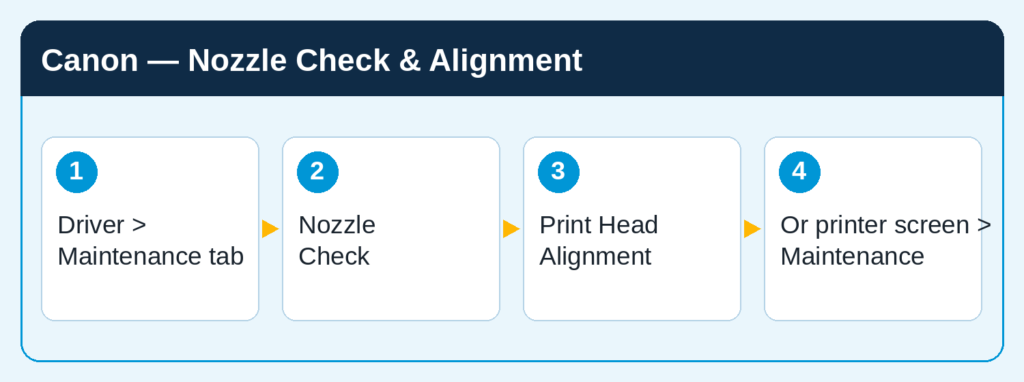
On the home screen, open the gear/Setup icon, then Maintenance. Choose Print nozzle check pattern and confirm. The printer prints a grid pattern with a row for each ink. The same Maintenance menu holds Print Head Cleaning, Deep Cleaning and Print Head Alignment, so everything you need after reading the pattern is one menu away.
G-series MegaTank without a touchscreen (G2010, G3010, G4010 and similar)
These models use the Setup/Tools button and the small LCD counter. Press Setup repeatedly until the display shows the number for the nozzle check pattern (1 on most G-series models; your manual’s maintenance table confirms it), then press the Black or Color start button. The pattern prints with no computer attached. The same counter system runs cleaning and alignment at their own numbers.
imageCLASS laser printers
Lasers print their test pages from the control panel reports: Menu > Reports (or Print Reports) > choose the status/configuration or test print option. Pair it with our Black & White sheet. On a laser, even grey shading and no vertical streaks are what you are checking for, and the built-in report alone cannot show them.
How to Print a Test Page on Canon from Windows and Mac
Windows 11 & 10 (Canon IJ Printer Utility)
Open Settings > Bluetooth & devices > Printers & scanners, select your Canon, and open Printing preferences. The Utility/Maintenance tab opens the Canon IJ Printer Utility with Nozzle Check, Cleaning, Deep Cleaning, Alignment and ink levels. Windows’ own Print test page button (in Printer Properties) confirms the driver works but prints almost no colour. For quality, use the utility’s nozzle check or our Color sheet.
Mac (Print Test Page + Canon utility)
macOS has a genuine built-in test page: open System Settings > Printers & Scanners, select the Canon, open its Print Queue, then choose Printer > Print Test Page from the menu bar. For the full toolkit, install Canon’s driver package and open the Canon IJ Printer Utility from the queue window’s Options/Utility: nozzle check and cleaning live there. The Canon PRINT app on iPhone and Android can also run the nozzle check from Printer Settings > Maintenance.
How to Read Your Canon Test Page
A healthy Canon pattern is easy to recognise once you know what to look for. Whether you printed the colour sheet from this page or the nozzle check pattern from the printer itself, the same rules apply: every colour should be present, every line should be solid, and the black should be black. Read the page in good daylight, hold it at arm’s length first for an overall view, then look closely at each part. The four patterns below are the ones that tell you almost everything, and each one points to a different fix.
Healthy pattern
Every colour block is solid, the nozzle pattern has no gaps, and black is deep and even.
Colour missing
One block or one nozzle row is empty. That ink is out, taped, or its nozzles are clogged.
Banding or gaps
White lines across a block, or gaps in the nozzle pattern, mean clogged nozzles or a head that needs aligning.
Colours wrong
Every colour is off in the same way. Check the driver colour mode and the paper setting first.
Canon Models: Test-Page Steps by Series
Canon makes so many different printers that one set of steps never fits them all. The test page for printer Canon owners need depends on the series, because the buttons, the screen and the maintenance menu all change. Use the section for your series below, and if your exact model is not listed, use the section for its series, because models in the same series share the same menu. In every case, you can also print a test page on Canon from a computer using the PDF sheets at the top of this page, which is often the fastest way, and it works on every Canon model.
PIXMA TS series, including the TS3722
The PIXMA TS series is the most common Canon home range, and the TS3722 is one of its best-selling models. To print a test page on a Canon Pixma TS, load plain A4 paper, press the Setup button, then use the arrow buttons until the LCD shows Maintenance, press OK, choose Nozzle Check, and press the Black or Colour button to print the pattern. The TS3722 has no touchscreen, so the button method is the one to learn: Setup, then Maintenance, then Nozzle Check. To print a colour test page on Canon TS models from a computer instead, open the PDF at the top of this page, choose the TS3722 or any PIXMA, and print at 100% / Actual size. If the nozzle pattern has gaps, run Cleaning from the same Maintenance menu, then print the nozzle check again. One cleaning cycle is usually enough, and two is the most you should run before leaving the printer overnight.
PIXMA TR series
The PIXMA TR series, including the TR4720, TR7020 and TR8620, is the home-office range with a fax and an automatic document feeder on most models. To print a test page on a Canon TR printer without a computer, press Setup, then Maintenance, then Nozzle Check, and press Start. On TR models with a touchscreen, the path is Setup, then Maintenance, then Print Nozzle Check Pattern, and the printer will print the pattern for black and for colour. The TR series uses the same two-cartridge system as the TS series on most models, a black cartridge and a tri-colour cartridge, so a missing colour on the test page usually means the tri-colour cartridge is empty or clogged. A canon test page print from a computer works the same way on TR models: download the colour PDF, print it at 100%, and read the solid blocks first. If the black block is grey on a TR model, check that the printer is not set to print in grayscale in the driver, because that is a common cause on office models that are shared between several computers.
PIXMA MG series, including the MG3600
The PIXMA MG series, including the MG3600, MG3620, MG2522 and MG2922, is the budget range, and most MG models have only a few buttons and a small display. How to print a test page on Canon MG3600 without a computer: hold the Stop button until the Alarm lamp flashes twice, then release it, and the printer will print a nozzle check pattern. That is the canon printer test page without computer button method for the MG3600, and it is worth learning, because the MG3600 has no screen to navigate. To print a colour test page on an MG model from a computer, use the PDF at the top of this page, because the MG series has no built-in colour test page, only the nozzle check pattern. If a colour is missing from the pattern, run a head cleaning by holding the Stop button until the Alarm lamp flashes once, then release it, and print the pattern again. MG models are often left unused for weeks, so a clogged nozzle is the most common cause of a missing colour on this series, and one cleaning cycle after a long rest usually brings it back.
MAXIFY MB and GX series
The MAXIFY MB and GX series are Canon’s small-business ranges. MB models, such as the MB2720 and MB5420, use cartridges and have a touchscreen, while GX models, such as the GX1020 and GX4020, use refillable MegaTank ink, like the G-series. On a MAXIFY with a touchscreen, go to Setup, then Maintenance, then Print Nozzle Check Pattern. On an MB model without a touchscreen, use the Setup button and the arrow keys to reach Maintenance. For a full colour check, print a test page canon printer owners can read at a glance: use the colour PDF at the top of this page, because the built-in nozzle pattern only shows small blocks of each ink, while the colour sheet shows solid blocks, tint ramps and a grayscale wedge. MAXIFY printers are built for high-volume printing, so if a MAXIFY starts banding after a large job, run the print head alignment from the Maintenance menu, because heavy use is the usual cause of a head drifting out of alignment on this series.
imageCLASS laser printers
Canon imageCLASS printers are lasers, so there is no nozzle check and no ink to clean. To print a test page on a Canon imageCLASS laser, use the control panel: press Menu, then Reports or Print Reports, then choose Printer Status or Configuration, and the printer will print a page that shows the toner levels and the settings. For a colour check on a colour imageCLASS, print the colour PDF at the top of this page instead, because the built-in report does not show colour blocks. For a canon printer test page black and white check on a mono imageCLASS, use our black and white test page, which shows solid black, grayscale steps and fine text. If an imageCLASS prints faded black, the toner is low or the drum is worn, and if it prints a colour cast, run the colour calibration from the Maintenance or Adjustment menu, because a laser that has been moved or that has had a toner cartridge changed often needs recalibrating.
MegaTank G-series: G1010, G2010, G3010, G4010, G2900 and up to the G3730
The MegaTank G-series, including the G1010, G2010, G3010, G4010, the G2900 and the newer G3730, uses refillable ink tanks instead of cartridges, and the steps are the same across the whole series. To print a test page on a Canon MegaTank without a computer, press and hold the Stop button until the power lamp flashes, then release it, and the printer will print a nozzle check pattern. On G-series models with a screen, the path is Setup, then Maintenance, then Print Nozzle Check Pattern. Because the ink is in tanks, a missing colour usually means a tank is low or air has got into the ink line after a refill, so check the tank levels on the front of the printer before you run a cleaning. A nozzle check page Canon MegaTank owners should print after every refill is the best way to confirm the ink is flowing again, and if the pattern is still missing a colour after one cleaning, wait an hour and print it again, because air in the line can take time to clear. For a full colour check, print the colour PDF at the top of this page, and read the tint ramps, because a MegaTank that is running low shows its weakness in the pale steps first.
PIXMA Pro 100
The PIXMA Pro 100 is a professional photo printer with eight inks, including three blacks, so its test page needs to be read differently from a four-ink home printer. To print a test page on a Canon PIXMA Pro 100, use the colour PDF at the top of this page, printed from a computer at 100% / Actual size on the paper you will use for photos, because the Pro 100 has no built-in colour test page, only a nozzle check pattern from its maintenance menu. On the colour sheet, check the solid blocks first, then the grayscale wedge, because the Pro 100 has a photo black and a matte black, and the printer chooses between them by paper type. If black prints look grey on glossy paper, the printer is using the matte black, and the paper setting is wrong. For a printer alignment test page Canon Pro 100 owners can use, print the nozzle check pattern from the printer driver, choose Manual head alignment, and print the alignment sheet, because a Pro 100 that is out of alignment will show soft edges on fine text even when its colours are perfect.
Two notes apply to every Canon series. First, the canon printer test page without computer method is always the nozzle check pattern, not a full colour page, so if you need a colour check and you have no computer, print the PDF from a phone or tablet using the Canon PRINT app, which can print a PDF to any Wi-Fi Canon. Second, if you print a test page and the printer prints nothing at all, check that the printer is not paused, that it has paper, and that the correct printer is selected, because a test page that never arrives is usually a queue problem, not a printer problem.
Problems and Fixes
Canon printers give you a clear clue on every test page, because the nozzle check pattern shows each ink separately. Read the pattern first, match it to the problem below, and fix only that problem. Most Canon faults are solved by one cleaning cycle, one cartridge change, or one driver setting, and in that order.
Gaps in the nozzle check pattern
Gaps in the nozzle check page Canon printers print are the most common Canon fault, and they mean dried ink in the print head. If the gaps are in one colour only, that cartridge or tank is the one that is clogged. Run one cleaning cycle from the Maintenance menu, then print the nozzle check pattern again. If the gaps are smaller, run a second cleaning cycle, and then leave the printer switched on overnight, because dried ink often softens with time and heat. Do not run cleaning five times in a row: each cycle uses ink from every cartridge, and on a MegaTank it can empty a tank surprisingly fast. If the gaps are in every colour, the print head itself may need a deep cleaning, which you can run once from the same Maintenance menu, and then print the pattern again the next day.
A colour is missing altogether
A colour that is missing from both the nozzle pattern and the colour sheet is either out of ink, or its cartridge is not fitted properly. Check the ink level first, then remove the cartridge, check that the protective tape is off and that the contacts are clean, and fit it again until it clicks. On a MegaTank G-series, check the tank level on the front of the printer, and look for air in the ink line, which can happen after a refill. If the colour is missing from the colour sheet but present on the nozzle check pattern, the fault is in the software, not the printer: try printing the PDF version of this page from a different app, or print the canon printer test page black and white sheet to check whether black prints normally, because a driver that drops one colour channel will often print black correctly and colour wrongly.
Banding, faded prints and wrong colours
Banding, a set of pale horizontal lines across a solid block, means the print head needs aligning, or the nozzles are partly blocked. Run the print head alignment from the Maintenance menu, and print the alignment sheet when the printer asks for it. Faded prints, where every colour is pale, usually mean the printer is in draft or economy mode, or the paper setting is wrong for the paper in the tray, so set the quality to Normal and the paper type to match the paper. Wrong colours, where every colour is off in the same direction, usually mean the colour mode in the driver is set to vivid, or the colour management is set to the app and the printer at the same time. Set the driver colour mode to Automatic and print the test page again before you change anything else. On a Canon laser, banding and fading have different causes: a worn drum or low toner, not a nozzle, so run the colour calibration from the Maintenance menu instead.
Black prints grey instead of black
When black prints look grey, Canon owners should check three things. First, the black cartridge or tank may be low, which shows on the colour sheet as a black block that is grey and on the nozzle pattern as a faint black row. Second, the printer may be printing black from the colour cartridge, which happens when the black cartridge is empty and the printer mixes cyan, magenta and yellow to make a dark grey, so replace the black cartridge and print again. Third, the paper setting may be wrong: on a PIXMA Pro 100, black on glossy paper should use the photo black, and if the paper is set to plain paper, the printer will use the matte black and the result will look grey and flat. A canon printer test page black and white print, from our black and white test page, is the best way to judge black alone, because it prints solid black, grey steps and fine text on one sheet.