
Brother Printer Test Page: Print a Test Page on Any Brother Printer
Need a Brother printer test page? Print one right here. The sheets below are made for Brother inkjet and laser printers (HL, MFC and DCP) and check colour, black ink, alignment and print quality on a single page, in A4 and US Letter. Or use the step-by-step instructions further down to print Brother’s own test page from the control panel, Windows, Mac or the Brother iPrint&Scan app. If you also use another brand, see our HP printer test page, Canon printer test page and Epson printer test page guides.
Quick answer: on most Brother inkjet printers, press the Ink button, then Improve Print Quality, then Check Print Quality, or print our sheet above for a fuller check with a 100 mm scale line.

Print at 100% / Actual size so the scale check measures true.
The Quickest Ways to Print a Brother Test Page
From the control panel
Inkjet models: press the Ink button, then Improve Print Quality, then Check Print Quality. Laser models: Menu > Printer > Print Settings, or press Go three times on the HL-2270DW.
From Windows
Settings > Bluetooth & devices > Printers & scanners > your Brother printer > Print test page. Works on Windows 11 and Windows 10 (in 10: Devices > Printers & scanners).
With Brother iPrint&Scan
Open the Brother iPrint&Scan app, select your printer, then print the colour test sheet from this page. The app sends it to the printer over Wi-Fi.
Which Test Sheet Should a Brother Printer Use?
Brother’s built-in reports are useful, but they are different on every model and none of them includes a measured scale. Start with the Color sheet. It exercises every cartridge at once. Mono laser models: start with the Black & White sheet for toner and drum checks, then the Color sheet on colour lasers. Print at 100% / Actual size, on plain paper, with the quality set to Normal or Best.
The full set of free sheets is on the home page and the Printer Test Page PDF hub.
How to Print a Test Page from the Brother Control Panel
The exact menu depends on your series. Find yours below. Each method takes under a minute.
On a Brother inkjet: Ink > Improve Print Quality > Check Print Quality
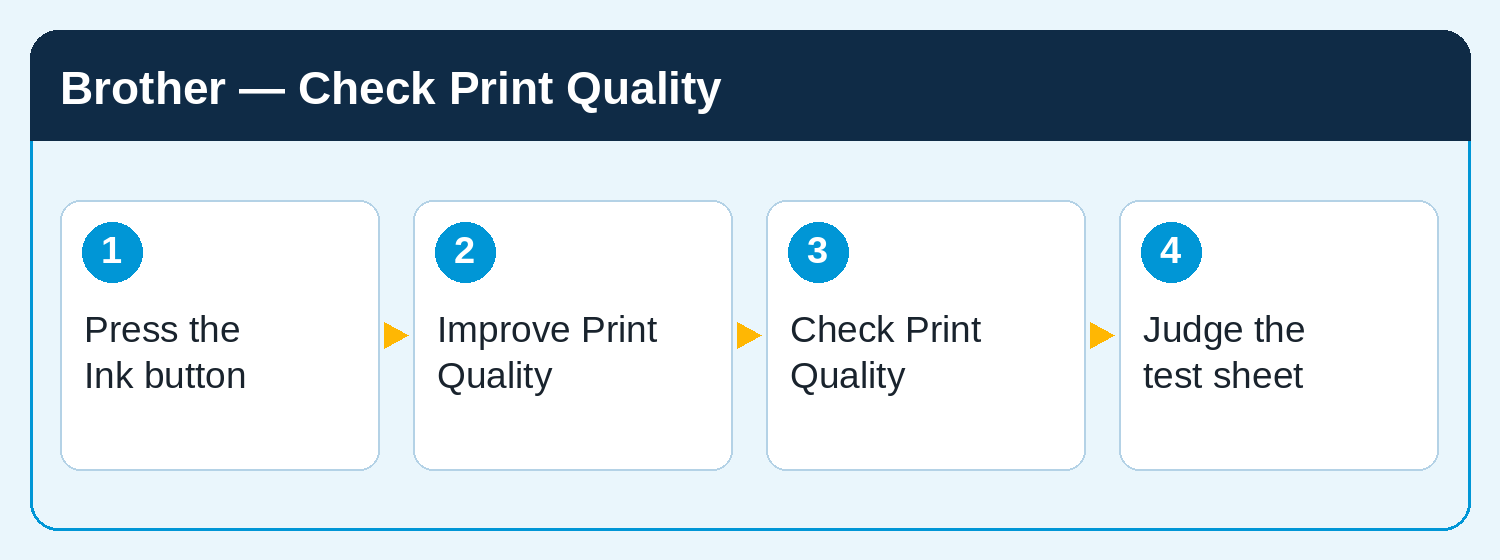
This is the Brother test print page flow on almost every MFC and DCP inkjet. Press the Ink button on the control panel, choose Improve Print Quality, then Check Print Quality. Pick Black, Colour or All, press Start, and the printer prints its Print Quality Check Sheet. Look at the sheet: if a colour block is missing or streaked, choose that colour on the next screen and run a cleaning cycle, then print the check sheet again. The four steps are shown in the image above: press Ink, improve the quality, check it, then judge the sheet.
Brother MFC inkjet printers: MFC-J1010DW, MFC-J1205W and MFC-J491DW
On the Brother MFC-J1010DW, press the Ink key, select Improve Print Quality, then Check Print Quality, and choose All to test black and colour together. The MFC-J1010DW prints its check sheet in a few seconds; if any colour is missing, the screen offers a cleaning cycle for that colour.
The Brother MFC-J1205W works the same way: Ink > Improve Print Quality > Check Print Quality. The MFC-J1205W is a compact model with no touchscreen, so every step is done with the Ink key and the arrow keys. Follow the prompts on the small display.
On the Brother MFC-J491DW, press Ink, then Improve Print Quality, then Check Print Quality. The MFC-J491DW has a colour touchscreen, so you can also go to Settings > Maintenance > Improve Print Quality > Check Print Quality if you prefer the menus.
Brother HL laser printers: HL-2270DW and HL-5450DN
To print a test page on a Brother HL-2270DW, press the Go button three times within two seconds. The printer prints its Printer Settings page, which includes a test pattern, the toner level and the network settings. That is the HL-2270DW test page. There is no separate test-page menu on this model.
On the Brother HL-5450DN, press Menu, use the arrow keys to select Machine Info, press OK, select Print Settings, then press Start. The HL-5450DN prints its Printer Settings page with a test pattern. On the HL-5450DN you can also print the Network Configuration from the same Machine Info. menu.
Brother DCP printers
Brother DCP inkjets (such as the DCP-J1200W) use the same Ink flow as the MFC models: Ink > Improve Print Quality > Check Print Quality. Brother DCP laser printers (such as the DCP-L2550DW) print their test page from the menu: press Menu, select Printer, then Print Settings, and press Start. On DCP models with a Go button, pressing Go three times also prints the Printer Settings page.
On a Brother printer with a touchscreen
On touchscreen MFC and DCP models, open Settings, then Maintenance, then Improve Print Quality, and choose Check Print Quality. Pick Black, Colour or All, press Start, and judge the sheet the printer produces. If a colour is missing or streaked, the screen offers to clean that colour. Accept it, then print the check sheet again to confirm the cleaning worked.
How to Print a Test Page on Brother from Windows 11 & 10
Windows 11: open Settings > Bluetooth & devices > Printers & scanners, click your Brother printer, then choose Print test page. Windows 10: open Settings > Devices > Printers & scanners, click your Brother printer, then Manage > Print a test page. The classic route works on both: open Control Panel > Devices and Printers, right-click your Brother printer, choose Printer properties, then Print Test Page. Use this brother print test page from Windows whenever the printer’s own menus are hard to reach. It tests the driver and the connection as well as the printer. If the test page prints but documents do not, the fault is in the app or the driver, not the printer.
How to Print a Test Page on Brother from a Mac
macOS has no single built-in test page button for Brother printers. Open System Settings > Printers & Scanners, select your Brother printer, then click Options & Supplies and open the Utility tab to reach Brother’s Printer Utility, where you can print a test page if your driver includes one. The simplest way on a Mac is to print the colour test sheet at the top of this page: open the PDF in Preview, choose your Brother printer, set the scale to 100%, and print. That tests the printer, the driver and the connection in one go. To print a test page on a Brother printer from a Mac without the utility, the sheet above is the quickest route.
Brother’s Own Test Reports, Explained
Brother printers can print several built-in reports. They are worth knowing. Each one answers a different question, and together they tell you whether a fault is in the ink, the toner, the drum or the network.
Print Quality Check Sheet
The inkjet check sheet. It prints four colour blocks and fine lines, one for each ink. If a block is missing or streaked, the printer offers to clean that colour. Print it from Ink > Improve Print Quality > Check Print Quality.
Printer Settings
The laser test page. It prints the firmware version, toner and drum life, page count and network settings, plus a test pattern. On the HL-2270DW press Go three times; on other lasers use Menu > Printer > Print Settings.
Network Configuration
The network report. It prints the IP address, SSID, signal strength and connection status, the first thing to check when a Brother printer shows as offline. Print it from Menu > Machine Info. > Print Reports > Network Config, or from the Printer Settings page.
None of these includes a measured scale or fine-line test. For a complete check that is identical on every printer, print our color test page and compare it with the scale line.
How to Read Your Brother Test Page
Printed the page? Match what you see to the fault:
A whole colour is missing
One colour is blank across the whole page. Check the cartridge for that colour, then run a cleaning cycle for it. If it is still blank, the cartridge is empty or the print head is blocked. See our color test page for a sheet that tests all four colours at once.
Faded or pale print
Everything prints, but pale. Check the ink or toner level, turn off draft or toner-save mode, and clean the nozzles or drum. On lasers, shake the toner cartridge gently and print again.
White lines or bands
White stripes across colour blocks mean blocked nozzles on an inkjet or a dirty drum on a laser. Run a cleaning cycle, then print a nozzle check page to confirm every nozzle is firing.
Lines not straight
Wavy or doubled lines mean the print head or the paper feed needs attention. Run the alignment from the printer menu, then print the test sheet again. See the Printer Test Page PDF hub for the full set of test sheets.
Brother Test Page Problems and Fixes
The test page is blank
Blank pages on Brother usually mean an empty or blocked black cartridge, a protective tape still on a new cartridge, or a toner cartridge that is not seated. On inkjets, check the ink levels and run a cleaning cycle; on lasers, check the toner and the drum unit, and make sure the corona wire is clean. If the check sheet prints blank too, the fault is in the printer, not the computer.
The printer keeps printing a test page
A Brother printer that prints a test page every time it switches on is usually finishing a Print Quality check it started earlier. Let the cycle finish: when the check sheet prints, look at it and answer the screen’s question (was the quality OK?), and the printer stops. If a test page is stuck in the Windows print queue, cancel it from Settings > Printers & scanners, then restart the printer. A test page that reappears after every cleaning cycle means the cleaning has not fixed the blocked nozzles. Run one more cleaning, then a nozzle check.
The printer prints a test page but not documents
The printer itself is fine. The fault is the connection or the driver. Restart the printer and the computer, check that the right Brother printer is set as the default, and clear any paused or stuck jobs in the queue. If documents still will not print, remove the printer in Settings and add it again so Windows or macOS installs a fresh driver. A test page that prints from Windows but a document that does not is almost always a driver or app setting, not a hardware fault.
The printer is offline
Print a Network Configuration page from the control panel (Menu > Machine Info. > Print Reports > Network Config). If the IP address starts with 169.254, the printer has no network address. Restart the printer and the router, then print the report again. Check the printer is on the same Wi-Fi network as the computer, move it closer to the router if the signal is weak, and set it as the default printer. A USB printer that shows offline usually needs its cable reseating or a different USB port.
Brother Printer Test Page FAQs

Louis Burton
Louis Burton has spent more than 10 years working with printers, and he still enjoys it. He runs his own printing shop in Pensacola, Florida, where he prints, services and troubleshoots inkjet and laser printers from HP, Canon, Epson and Brother every day. Louis started Printer Test Page to share the test sheets and checks he uses in the shop, so anyone can find out in one minute whether a printer is healthy or exactly which part of it needs attention.