
Laser Printer Test Page: Print a Laser Printer Test Page Online
Print a free laser printer test page and check your laser printer’s toner density, drum, fuser and print quality in under a minute. This laser test page is built for laser printers: high-contrast black text, solid blocks and fine lines that show up ghosting, streaks, grey backgrounds and toner that is not fusing, the faults that matter most on a laser machine. Print it whenever you fit a new cartridge or drum, or whenever print quality drops. This printer test page laser sheet works on any laser printer, whatever the brand.
Quick answer: a laser printer test page checks toner density, the drum and the fuser. If the solid black block is deep and even, the grey background is clean and the text is sharp, your laser printer is healthy. If you see ghost images, vertical lines or toner that smudges, the drum or the fuser needs attention. For a full mono check, use the Black & White Test Page.
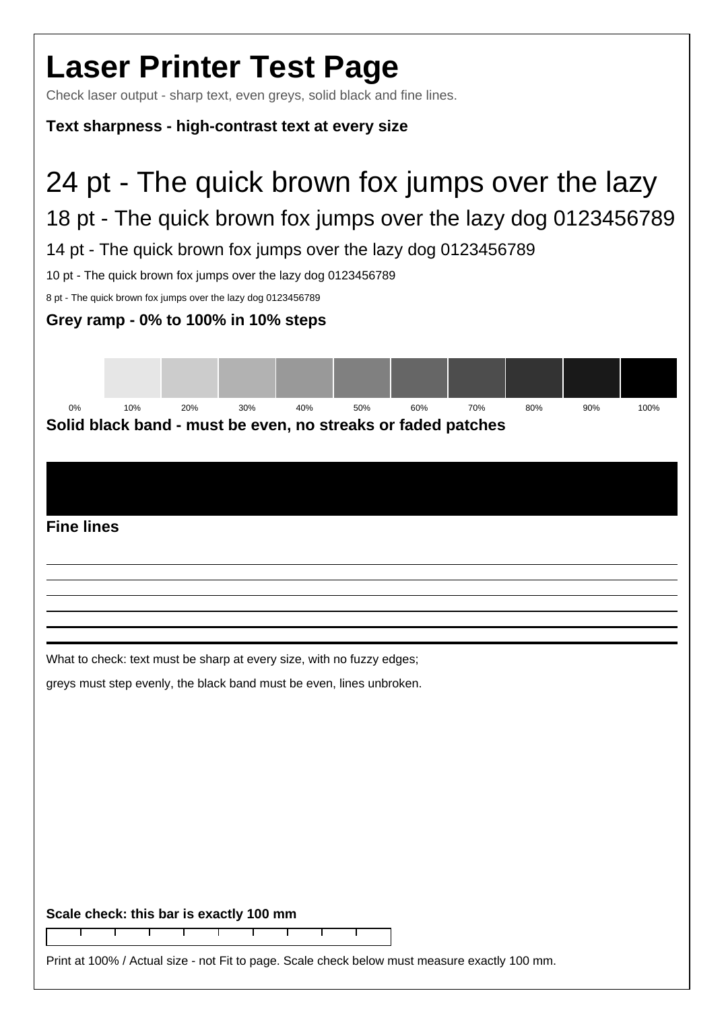
Print at 100% / Actual size. Works with HP, Canon, Epson and Brother, on Windows, Mac, Android and iOS.
What Does a Laser Printer Test Page Check?
Toner density
The solid black block and the grey steps show whether the toner is dense and even. A pale or patchy black block means the toner cartridge is low, the toner is not spreading evenly, or the printer is set to a toner-saving mode.
Drum condition
Ghost images and repeating marks point to a worn or damaged drum. The drum is the part that transfers toner to the paper, and a scratch or a worn spot repeats down the page at regular intervals.
Fuser and toner adhesion
Toner that smudges, flakes or rubs off the page means the fuser is not hot enough to melt the toner into the paper. The fuser is the heated roller at the end of the print path, and it is one of the parts that wears out on a laser printer.
Fine text and lines
Small text and hairline rules check the laser’s resolution and edge sharpness. Broken lines or blurry small text mean the laser unit is dirty, the drum is worn, or the driver is set to a low resolution.
If the solid black block is deep and even, the grey steps are all different from each other and the fine lines are unbroken, your laser printer is in good health. If the black is pale or patchy, the toner is low or the printer is in a toner-saving mode. For a closer look at grey tones, use the Grayscale Test Page, which prints ten grey steps from pale grey to near-black.
How to Read Your Laser Test Page
Deep, even black
This is the result you want. A solid black block that is deep and even, with clean grey steps and sharp text, means the toner, the drum and the fuser are all healthy. Keep printing. There is nothing to fix.
Ghost images
A faint repeat of text or a picture further down the page is a ghost image, and it means the drum is not clearing properly between pages. It is the classic sign of a drum at the end of its life.
Grey background
A grey wash over the whole page, even where it should be white, means toner is leaking onto the drum or the toner density is set too high. Check the cartridge, clean the drum and lower the density in the driver.
Vertical lines or streaks
A line running down the page in the same place on every sheet means a scratched drum, a dirty corona wire or a damaged fuser roller. Clean the corona wire first, it is the cheapest fix, then check the drum for scratches.
When Should You Print a Laser Test Page?
Print a laser test page when you fit a new toner cartridge or a new drum, after moving the printer, when prints start to look pale or ghosted, or before a long print run. It is also the first sheet to print when a laser printer starts leaving marks on the page: if this sheet shows a ghost or a line, you will know whether the drum or the fuser is at fault. For a fast check of solid black alone, use the Solid Black Test Page.
How to Print a Laser Test Page
Online (fastest): press the Print button at the top of this page, choose your printer, set 100% / Actual size and A4 or US Letter, then print. Most laser printers can also print a test page from their own panel: on HP LaserJet models, hold the Go button; on Brother HL models, press Go three times; on Canon imageCLASS models, use the menu. For more formats and paper sizes, see the Printer Test Page PDF hub.
Laser vs Inkjet Test Page
A laser printer quality test page and an inkjet test page are built for different machines, and they check different parts. The laser sheet is text-heavy and high-contrast, because a laser printer’s faults show up in black text and solid blocks. The inkjet sheet is colour-heavy, because an inkjet’s faults show up in the nozzles and the colour inks. Use the sheet that matches your printer. A laser sheet will not diagnose an inkjet, and an inkjet sheet will not diagnose a laser. A laser printer builds a page with a laser, a drum and toner; an inkjet builds it by spraying tiny drops of ink through nozzles. Because the two technologies work so differently, their test sheets are different too. A fault that is obvious on one sheet may not show up on the other at all.
Laser test page
A laser test page is text-heavy and high-contrast. It uses solid black blocks, grey steps and fine text, because that is what a laser printer is best at and where its faults show up. It uses no colour, and it checks the toner, the drum and the fuser, the three parts that decide laser print quality.
Inkjet test page
An inkjet test page checks the nozzles and the colour inks: it prints colour blocks, gradients and a nozzle pattern, because those are the parts that fail on an inkjet. It is the right sheet when text prints with white lines, colours are missing or the print head is blocked. For a full mono check on any printer, the Black & White Test Page is the one to use.
Which one should you use?
Use the laser test page if your printer is a laser printer: HP LaserJet, Brother HL, Canon imageCLASS or any other laser. Use an inkjet test page if your printer is an inkjet. The two technologies fail in different ways, so a sheet built for one will not diagnose the other.
- Laser test page: high-contrast black text and blocks. Use it on laser printers to check toner, drum and fuser.
- Inkjet test page: colour blocks, nozzles and gradients. Use it on inkjet printers to check nozzles and colour.
- Black and white test page: solid black, grey steps and fine text. Use it on either type for a fast mono check.
Problems and Fixes
Most laser faults show up in one of four ways, and each one has a different cause. Read the sheet, match what you see to the box below, and work through the fix in order. Most of them take under five minutes.
Ghost images
A faint repeat of the page content further down the sheet means the drum is not clearing. Print a few blank pages to clear it; if the ghost stays, replace the drum unit.
Grey background
A grey wash across the page usually means a dirty drum, the wrong toner, or a density setting that is too high. Clean the drum, check the cartridge is the right one for the printer, and lower the toner density in the driver.
Vertical lines
A line down the page in the same place on every sheet usually means a scratched drum or a dirty corona wire. Clean the corona wire with the printer’s cleaning tool, and check the drum for scratches or damage.
Toner smudging
Toner that smudges or rubs off the page means the fuser is not hot enough, the paper is too thick, or the paper type in the driver is wrong. Set the paper type to match the paper in the tray, and check the fuser for damage.
Laser Test Pages by Brand: HP LaserJet, Canon imageCLASS, Samsung / Xerox and Brother HL
A laser test page behaves the same on every brand, but the way you print one, and the way you fix a laser fault, is slightly different. Use the steps below for your brand, and remember that a laser printer test page that shows ghosting usually means the drum, not the toner. The steps below cover the most common laser models. If your model is not listed, the same approach still works: print this sheet from your computer at 100% / Actual size and read the result the same way, because the faults (ghosting, grey background, lines and smudging) are the same on every laser printer.
HP LaserJet
On HP LaserJet printers, press and hold the Go button for about five seconds until the printer prints a configuration or test page, or print this laserjet printer test page from your computer: open the print dialogue, choose your HP LaserJet, set 100% / Actual size and print. If the sheet shows ghost images, check the drum in HP’s printer software. HP LaserJet drums are usually built into the toner cartridge on smaller models, and separate on larger ones.
Canon imageCLASS
On Canon imageCLASS printers, use the printer’s menu to print a test page, or print this sheet from your computer: open the print dialogue, choose your Canon imageCLASS, set 100% / Actual size and print. If the sheet shows a grey background, check the toner cartridge is a genuine Canon cartridge and run a drum cleaning from the printer’s menu.
Samsung and Xerox
On Samsung and Xerox laser printers, print a test page from the printer’s control panel, or print this sheet from your computer: open the print dialogue, choose your Samsung or Xerox printer, set 100% / Actual size and print. On Xerox machines, a faded print often means the toner cartridge is low; on Samsung machines, check the imaging unit, which is the part that works like a drum.
Brother HL
On Brother HL printers, press the Go button three times to print a test page, or print this sheet from your computer: open the print dialogue, choose your Brother HL, set 100% / Actual size and print. Brother HL drums are separate from the toner cartridge, so a ghost image usually means the drum unit, not the toner, needs replacing.
Ghost images: when to replace the drum
Ghost images are the clearest sign of a worn drum. If a ghost appears on every page and does not fade after printing a few blank pages, the drum has reached the end of its life and should be replaced. On printers where the drum is built into the toner cartridge, replacing the cartridge fixes it; on printers with a separate drum unit, replace the drum only. The toner may still be fine.
Faded print: toner or drum?
A faded print can mean low toner or a worn drum, and the sheet helps you tell them apart. If the whole page is evenly pale, the toner is low. Replace the cartridge. If only part of the page is pale, or the fade comes and goes, the drum is worn or dirty. Rock the toner cartridge gently side to side to spread the remaining toner and buy yourself a few more pages, but plan a replacement.
Toner smudging and not fusing
Toner that smudges when you rub the page, or flakes off, means the fuser is not melting the toner into the paper. Check the paper type in the driver matches the paper in the tray. Thick paper needs a hotter fuser setting. If the smudging is on every page and the paper setting is right, the fuser is worn and needs replacing, which is a job for a repair shop on most home printers.
When to replace drum vs toner
Replace the toner when prints are evenly pale, the printer reports low toner, or the solid black block is weak all over. Replace the drum when you see ghost images, repeating marks at regular intervals, or vertical lines that do not move. The drum usually lasts several toner cartridges, so check the drum’s page count in the printer’s menu or software before you buy one. A drum with life left in it does not need replacing.
Frequently Asked Questions

Louis Burton
Louis Burton has spent more than 10 years working with printers, and he still enjoys it. He runs his own printing shop in Pensacola, Florida, where he prints, services and troubleshoots inkjet and laser printers from HP, Canon, Epson and Brother every day. Louis started Printer Test Page to share the test sheets and checks he uses in the shop, so anyone can find out in one minute whether a printer is healthy or exactly which part of it needs attention.