
6-Color Printer Test Page: Print a 6-Color Printer Test Page Online
Print a free 6-color printer test page and check your 6-ink photo printer’s colour in under a minute. This epson 6 color printer test page is built for 6-ink photo printers (Epson EcoTank ET-8550, Expression Photo XP-970 and the Stylus Photo series) and it checks the two inks a CMYK sheet cannot: light cyan and light magenta. A printer test page 6 color check is the fastest way to see whether your light cyan and light magenta inks are working. Print it on photo paper at the best quality setting and you will see, in one sheet, whether skin tones are smooth and skies graduate cleanly.
Quick answer: 6-colour printing adds light cyan and light magenta to the usual CMYK inks, and this sheet checks all six. If the light cyan and light magenta ramps are smooth, skin tones are natural and skies graduate without bands, your 6-ink photo printer is working. For a plain four-ink check, use the CMYK Test Page instead.
Print at 100% / Actual size. Works with HP, Canon, Epson and Brother, on Windows, Mac, Android and iOS.
What Does a 6-Color Test Page Check?
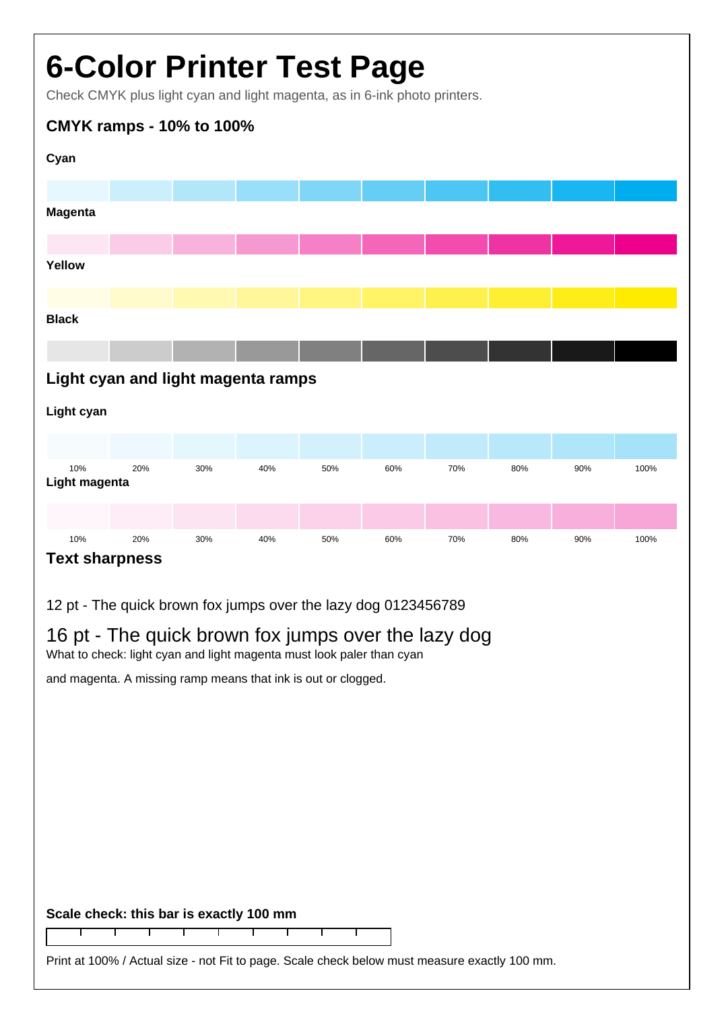
Light cyan ramp
A light cyan ramp from 10% to 100%, next to the standard cyan ramp. If the light cyan steps are smooth and even, the light cyan ink is flowing; if they vanish or merge, the light cyan nozzle is blocked or the ink is out.
Light magenta ramp
A light magenta ramp from 10% to 100%, next to the standard magenta ramp. Light magenta is the ink that makes skin tones look natural; if its steps are patchy or missing, faces will print too pink or too orange.
CMYK ramps
Cyan, magenta, yellow and black ramps from 10% to 100%. These four are the same as on a CMYK sheet, and they must be smooth and even. The extra inks only help if the base four are right.
Skin tones and gradients
A skin-tone patch and a sky gradient, printed with all six inks. These are the two places the extra inks matter most: smooth skin and a clean sky are the proof that a 6-ink printer is earning its keep.
If all six ramps are smooth, the skin tones are natural and the sky graduates without bands, your 6-ink photo printer is working. If you want to check how your printer handles pure colour, print the RGB Test Page, which prints the red, green and blue channels your screen uses.
How to Read Your 6-Color Test Page
Light cyan vs standard cyan
Compare the light cyan ramp with the standard cyan ramp, step by step. The light cyan steps should be paler and smoother. That is the whole point of the extra ink. If the light cyan ramp looks the same as the cyan ramp, the light cyan ink is not being used.
Light magenta vs standard magenta
Compare the light magenta ramp with the standard magenta ramp. The light magenta steps should be paler and smoother, and the skin-tone patch should look natural. If the light magenta ramp is missing or patchy, skin tones will print too pink.
Skin tones
Look at the skin-tone patch in normal light. It should be smooth, with no visible steps, no pink cast and no orange cast. A pink cast usually means too much magenta; an orange cast usually means too much yellow; a blotchy patch usually means a blocked nozzle.
Sky gradients
Look at the sky gradient from pale blue to deep blue. It should change smoothly, with no visible bands or steps. Bands usually mean the light cyan ink is not flowing, or the printer is printing at too low a quality for the paper.
When Should You Print a 6-Color Test Page?
Print a 6-color test page when you set up a 6-ink photo printer, when you fit a new light cyan or light magenta cartridge, and before you print a batch of photographs, especially portraits or landscapes with a lot of sky. It takes under a minute and it catches the one fault a CMYK sheet cannot: a light ink that is blocked or empty. If you only need to check the four base inks, the Color Test Page is the quicker check.
How to Print a 6-Color Test Page
Online (fastest): press the Print button at the top of this page, choose your printer, set 100% / Actual size and print on photo paper at the best quality setting. For more formats and paper sizes, see the Printer Test Page PDF hub. The same steps work for Epson 6-ink photo printers. See the Epson Printer Test Page for brand-specific settings. To check the full colour range, print the Color Palette Test Page or the Rainbow Test Page.
6-Color vs CMYK Test Page
A 6-color test page and a CMYK test page look similar, both print colour ramps and gradients, but they check different things. The CMYK sheet checks four inks; the 6-color sheet checks six. The two extra inks, light cyan and light magenta, are what make a photo printer’s skin tones and skies look smooth. Use the sheet that matches your printer: a CMYK sheet will not tell you whether your light inks are working, and a 6-color sheet is wasted on a four-ink printer.
6-color test page
A 6-color test page checks six inks: cyan, magenta, yellow, black, light cyan and light magenta. It prints a light cyan ramp and a light magenta ramp next to the standard ramps, plus a skin-tone patch and a sky gradient. It is the sheet to use on a 6-ink photo printer: Epson EcoTank ET-8550, Expression Photo XP-970 and the Stylus Photo series.
CMYK test page
A CMYK test page checks four inks: cyan, magenta, yellow and black. It prints a ramp for each ink and a colour gradient, and it is the sheet to use on an ordinary four-ink printer. It will not tell you anything about light cyan or light magenta, because a four-ink printer does not have them.
When do the extra inks matter?
The extra inks matter most in two places: skin tones and skies. Light magenta makes skin look natural instead of pink or orange, and light cyan makes a sky graduate smoothly instead of banding. They matter less in bold graphics and text, where the four base inks do the work. If you print photographs, the extra inks matter; if you print documents, they do not. For a four-ink check, the CMYK Test Page is the one to use.
- 6-color test page: CMYK plus light cyan and light magenta. Use it on a 6-ink photo printer, before printing photographs.
- CMYK test page: cyan, magenta, yellow and black. Use it on an ordinary four-ink printer, or for a fast check of the base inks.
- RGB test page: red, green and blue channels. Use it to check how your printer handles the colours your screen shows.
Problems and Fixes
Most 6-color printing faults show up in one of four ways, and each one has a different cause. Read the sheet, match what you see to the box below, and fix the cause before you print the photographs.
Skin tones look wrong
Skin that prints too pink usually means too much magenta, or a light magenta nozzle that is blocked. Skin that prints too orange usually means too much yellow. Run a nozzle check, then clean the print head once, and print this sheet again.
Sky gradients band
A sky that prints in visible bands usually means the light cyan ink is not flowing, or the printer is printing at too low a quality. Run a nozzle check on the light cyan, set the quality to Best and use photo paper.
Light ink missing
A light cyan or light magenta ramp that is missing altogether usually means the cartridge is empty, or the ink has dried in the nozzle. Check the ink level, run a nozzle check, and clean the print head if the light ink is still missing.
Photo prints look flat
A photo that prints flat, with dull colours and no depth, usually means the printer is using the wrong paper type, or the colour management is off. Set the paper type to photo paper, set the quality to Best, and let the printer manage the colour.
6-Color Photo Printers: Epson EcoTank ET-8550, Expression Photo XP-970 and Stylus Photo
Six-ink photo printing is an Epson specialty, and the printers that use it are easy to recognise: they have six ink tanks or cartridges instead of four, and the two extra ones are always light cyan and light magenta. Use the notes below for your model, and remember that a 6 ink printer test page is the fastest way to check any of them.
Epson EcoTank ET-8550
The EcoTank ET-8550 is a six-ink photo printer with refillable ink tanks: cyan, magenta, yellow, black, light cyan and light magenta. It prints borderless photos up to A3+ and it is the most common 6-ink printer in homes. On the ET-8550, print this sheet on Epson photo paper at the Best quality setting, and check the light cyan and light magenta tanks first if the ramps are patchy. The tanks are transparent, so you can see the level.
Epson Expression Photo XP-970
The Expression Photo XP-970 is a six-cartridge photo printer: cyan, magenta, yellow, black, light cyan and light magenta, in individual cartridges. It prints borderless photos up to A3 and it is built for photo printing. On the XP-970, print this sheet on photo paper at the Best quality setting, and if the light ink ramps are missing, check the cartridges. A light ink cartridge can run out without any warning on the printer’s display.
Epson Stylus Photo series
The Stylus Photo series (Stylus Photo R2000, R3000 and their successors) are six-ink (and more) photo printers with individual cartridges, built for photographers. They use light cyan and light magenta in the same way as the newer models, and they print on a wide range of photo papers. On a Stylus Photo printer, print this sheet on the paper you will use for the photographs, at the Best quality setting, and run a nozzle check first if the printer has been idle for a while.
Other 6-ink photo printers
Other makers have sold 6-ink photo printers too, Canon’s PIXMA Pro series and HP’s Photosmart Pro series both used light cyan and light magenta, and the same sheet works on all of them. The ink names may differ (Canon calls them photo cyan and photo magenta), but the ramps on this sheet check them the same way: a smooth light ramp means the ink is flowing, and a missing one means it is not.
Skin tones look wrong: magenta, yellow or a blocked nozzle
Skin tones that print too pink usually mean the light magenta is too strong, or the standard magenta is doing work the light magenta should do. Skin that prints too orange usually means too much yellow. And skin that prints blotchy, with patches of pink and patches of pale, usually means a blocked light magenta nozzle. Fix it by running a nozzle check, then cleaning the print head once and printing this sheet again. If the skin tone is still wrong, check the colour management: the printer should be managing the colour, or the software should be, not both at once. Double colour management is the most common cause of a colour cast that will not go away.
Sky gradients band: light cyan or quality setting
A sky gradient that prints in visible bands, like steps on a staircase, usually means the light cyan ink is not flowing, or the printer is printing at too low a quality for the paper. Run a nozzle check on the light cyan first: if the light cyan nozzles are blocked, no quality setting will fix the bands. If the nozzles are clear, set the quality to Best and use photo paper. Plain paper and Draft quality will band even on a healthy 6-ink printer, because the printer lays down less ink. And check the paper type in the driver: if the driver thinks the paper is plain when it is photo paper, it will use the wrong ink amounts and the sky will band.
Light cyan or light magenta missing: empty cartridge or dried ink
A light cyan or light magenta ramp that is missing altogether usually means the cartridge or tank is empty, or the ink has dried in the nozzle. Check the ink level first: on an EcoTank you can see it through the tank, on a cartridge printer check the printer’s ink levels. If the ink is there, run a nozzle check: if the light ink does not print in the nozzle check either, the nozzle is blocked. Run one head cleaning, then print the nozzle check again. If the light ink is still missing after two cleanings, leave the printer for a few hours and try again, dried ink sometimes needs time to soften, and if it is still missing, the cartridge may need replacing.
Photo prints look flat: paper type or colour management
A photo that prints flat, with dull colours and no depth, usually means the printer is using the wrong paper type, or the colour management is set wrong. Set the paper type in the driver to match the paper in the tray (photo paper, not plain paper) and set the quality to Best. Then check the colour management: in the print dialogue, either let the printer manage the colour, or let Photoshop or your photo software manage it, but not both. If both are managing the colour, the photo will print flat and dull. And use genuine photo paper for the test: the sheet is designed for photo paper, and on plain paper the colours will always look flat.
Frequently Asked Questions

Louis Burton
Louis Burton has spent more than 10 years working with printers, and he still enjoys it. He runs his own printing shop in Pensacola, Florida, where he prints, services and troubleshoots inkjet and laser printers from HP, Canon, Epson and Brother every day. Louis started Printer Test Page to share the test sheets and checks he uses in the shop, so anyone can find out in one minute whether a printer is healthy or exactly which part of it needs attention.