
Cyan Test Page: Print a Cyan Printer Test Page Online
Print a free cyan printer test page and check your cyan ink in under a minute. Cyan is the cool, blue-green ink that makes skies blue, seas turquoise and leaves green, so when cyan runs low or its nozzles clog, photographs go warm and muddy, blues turn purple and greens turn yellow. A dedicated cyan check is the fastest way to find out whether the cyan cartridge, the cyan nozzles or the print head is at fault. This page now has its own dedicated cyan test sheet, which prints a large solid cyan patch, ten cyan tints, fine cyan lines and cyan text. Print it, look at the cyan areas first, and you will know straight away whether cyan is printing properly. If you only need to check black, use the Black & White Test Page instead; to check all four inks at once, use the CMYK Test Page; and to check the warm partner ink, use the Yellow Test Page.
Quick answer: print the sheet below and look at the cyan patch first: if it is missing, pale or streaked, the cyan ink is the problem. Blues printing purple is the classic sign: blue is made from cyan and magenta, so with no cyan the blue comes out purple.
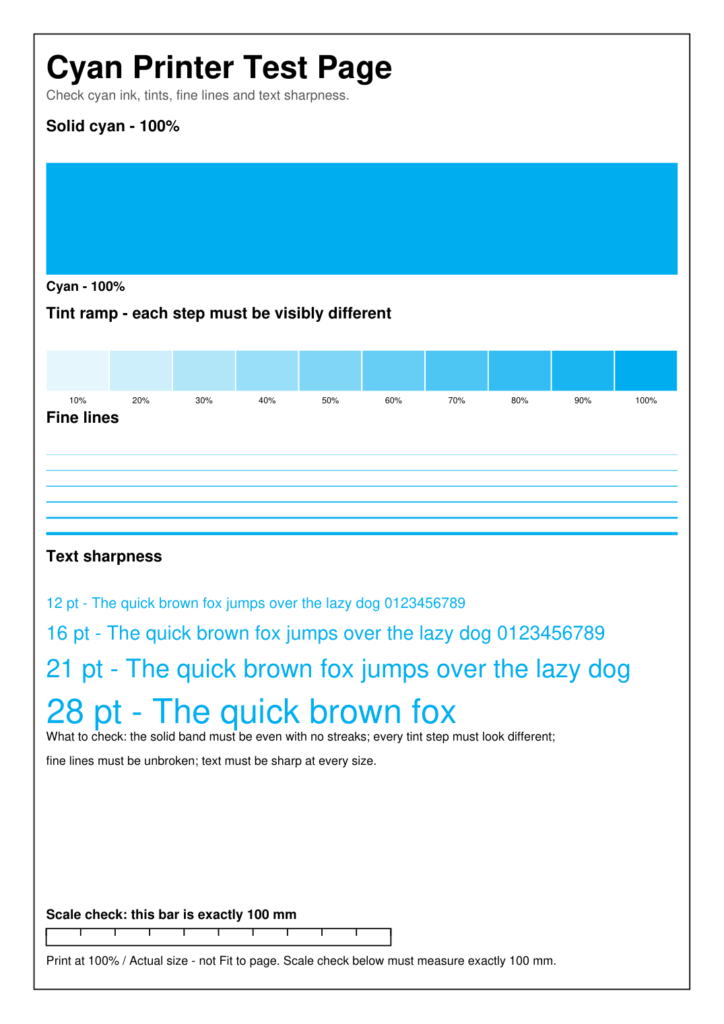
Print at 100% / Actual size. Works with HP, Canon, Epson and Brother, on Windows, Mac, Android and iOS.
What Does a Cyan Test Page Check?
A cyan print test page checks one thing in depth: the cyan channel of your printer. The sheet prints cyan on its own (no magenta, yellow or black mixed in) so anything wrong with cyan shows up clearly instead of hiding inside a full-colour photograph. Work through the four checks below, starting with the solid band, and you will know whether cyan is printing properly or whether a cartridge, a nozzle or the print head needs attention.
Solid cyan band
A large block of 100% cyan that should look even from edge to edge. Any white gap, streak or pale stripe inside it points to a blocked cyan nozzle or a cyan cartridge running low.
Ten cyan tints
Cyan printed at 10%, 20% and every step up to 100%. The lightest tints are the first to vanish when nozzles clog, so if 10% and 20% are missing but 100% prints, the cyan nozzles are partly blocked.
Fine lines and staircases
Thin cyan lines, diagonal staircases and a fine grid. Wobbly, broken or doubled lines mean the print head is misaligned or the cyan nozzles are firing unevenly.
Cyan text
Small cyan text at several sizes. Blurry, broken or missing letters show that cyan is not laying down cleanly, a fault that a solid block alone would hide.
The sheet also prints the colours cyan helps to make. Green is cyan plus yellow, blue is cyan plus magenta, and cool greys and skin tones all need a touch of cyan, so if the cyan patch is fine but greens look yellow and blues look purple, the problem is still cyan, it is just showing up in the mixes first. The sheet also carries the usual 100 mm scale and printable-margin marks, so you can check that the page is printing at the right size and that nothing is being cut off at the edges. For a full four-ink check, print the CMYK Test Page; for the whole colour range at once, use the Color Test Page.
How to Read Your Cyan Test Page
Print the sheet, let it dry for a few seconds, then hold it up in good light. Cyan is a mid-tone colour, so compare the patch with the cyan on your screen. On screen it will always look brighter, because a screen glows and paper does not. Judge the cyan by the patch itself, not by the screen, and work through the four readings below.
Cyan missing completely
The cyan patch is blank and the cyan tints are white. Blues print purple and greens print yellow, because both need cyan. Check that the cyan cartridge is fitted and not empty, then run a nozzle check and a head clean. The steps are on the Nozzle Check page.
Cyan faded or pale
Cyan prints but looks washed out, the pale tints vanish first, and skies and seas look grey instead of blue. The cartridge may be low, the nozzles may be partly blocked, or the paper type setting may be wrong. Plain paper settings lay down less ink. Try a head clean, then check the ink level.
White lines in the cyan
Thin white lines run across the cyan patch or band. These are blocked cyan nozzles: each missing line is a nozzle that is not firing. Run one or two head cleans, no more than three in a row, and print the sheet again to see whether the lines have filled in.
Cyan printing green or blue
The cyan patch has a green or blue cast. Cyan on its own should be a clean blue-green, so a green cast means yellow is mixing in and a deeper blue cast means magenta is mixing in, usually a leaking cartridge, a dirty print head or a head that needs aligning. Clean the head and check the cartridges are seated properly.
Cyan, Blue and Green: How Cyan Mixes
Cyan is one of the three subtractive primary colours, along with magenta and yellow, and in a CMYK printer it is never used on its own in a photograph: it is mixed with yellow to make green, with magenta to make blue and violet, and with both to make deep teal and dark blue. That is why a cyan fault rarely looks like a cyan fault. It looks like yellow greens, purple blues and warm, muddy skin tones, because skin tones need a little cyan to stay natural. It also explains why the cyan ink often seems to run out first on photo printers: almost every sky, sea and landscape photograph contains cyan. If your printer has separate cartridges, a missing cyan can be fixed by replacing one cartridge; on printers with a single tri-colour cartridge, a dead cyan means the whole cartridge has to go. The CMYK Test Page shows the same mixes across all four inks if you want to compare them side by side.
When Should You Print a Cyan Test Page?
Print a cyan test page whenever cyan is in doubt, and a few times when it is not, so you catch a fault early. A printer test page for cyan takes less than a minute and uses very little ink, so there is no reason to wait until a whole print job is ruined.
- After a head clean or nozzle check, to prove the cyan nozzles are firing again.
- After fitting a new cyan cartridge, or a new tri-colour cartridge, to confirm cyan is flowing.
- When the printer has sat unused for a few weeks, because ink dries in the nozzles while the printer sits idle.
- Whenever colours look wrong: blues printing purple, greens printing yellow, or photographs looking warm and muddy.
- Before an important print run (photographs, a presentation or a batch of invitations) so a cyan fault does not ruin the whole job.
- After refilling a cartridge or fitting a compatible cartridge, to check that the refill is feeding properly.
How to Print a Cyan Test Page
Printing a cyan test page takes less than a minute, whichever device you use. The sheet is the Cyan Test Page PDF. Print it at 100% / Actual size on plain white paper and look at the cyan areas first. If you would rather check every colour at once, the same steps work for the Printer Test Page PDF hub, which lists every sheet on this site.
Online in your browser
The quickest way to print a cyan test page: click “Print Cyan Test Page (A4)” at the top of this page. The PDF opens in your browser. Print it at 100% / Actual size on plain white A4 paper. For US Letter paper, use the “Download Cyan Test Page (US Letter)” button instead. Look at the cyan patch first, then the tints and the mixed colours.
Windows 11 & 10
Open the PDF in your browser or PDF reader and press Ctrl + P. Choose your printer, set the paper size to A4 or US Letter to match the file, set the quality to Normal or Best, and make sure “Fit to page” is off: scaling changes the size of the test areas and the 100 mm scale. Print, let the sheet dry for a few seconds, then check the cyan patch.
Mac
Open the PDF in Preview and press Cmd + P. Set the paper size to A4 or US Letter, set Scale to 100%, and print. If cyan looks pale on the first print, check that the print quality is not set to Draft or Economy, which lays down less ink.
From the printer’s control panel
Most printers can print their own test sheet without a computer, and the printer’s own sheet includes a cyan pattern too, so the same reading rules apply. The steps are different for every brand. See the HP Printer Test Page, the Canon Printer Test Page, the Epson Printer Test Page and the Brother Printer Test Page for the exact buttons. If your printer offers a nozzle check pattern, print that as well: it shows each cyan nozzle individually.
Cyan Test Page FAQs

Louis Burton
Louis Burton has spent more than 10 years working with printers, and he still enjoys it. He runs his own printing shop in Pensacola, Florida, where he prints, services and troubleshoots inkjet and laser printers from HP, Canon, Epson and Brother every day. Louis started Printer Test Page to share the test sheets and checks he uses in the shop, so anyone can find out in one minute whether a printer is healthy or exactly which part of it needs attention.