
Black & White Test Page: Print a Black and White Printer Test Page Online
Print a free black and white printer test page and see in under a minute whether your printer’s black ink is right. This black and white print test page checks solid black, grayscale steps, fine lines and text, so you can spot a clogged nozzle, faded black or blurry text before you waste paper.
Quick answer: if your black prints look wrong, print this sheet first: a missing black block, a faded grayscale ladder or white lines across the page will tell you whether the black cartridge or the print head needs attention. For colour checks, use the Color Test Page instead.
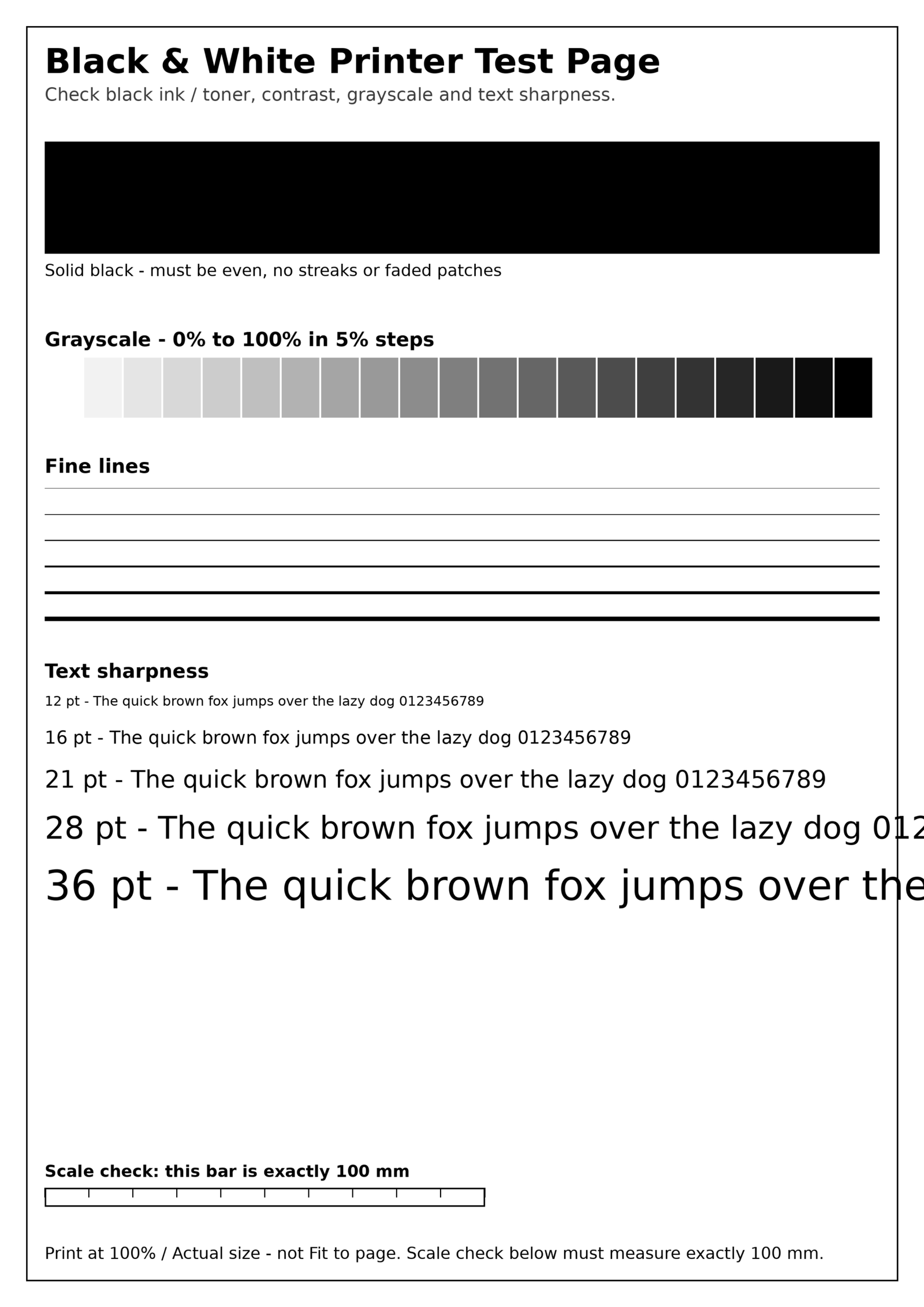
Print at 100% / Actual size. Works with HP, Canon, Epson and Brother, on Windows, Mac, Android and iOS.
What Does a Black & White Test Page Check?
Solid black block
One solid block of pure black. It must print perfectly even. Any pale patch, streak or missing corner means the black cartridge or print head is not delivering ink evenly.
Tint and grayscale ladder
A grayscale ladder from white to black in 5% steps, plus tint steps. Steps that vanish or merge show low black ink, or a draft setting that is thinning the print.
Grayscale wedge
Smooth steps from white to black. Light steps merging means lost highlights; dark steps merging means lost shadows, a sign the printer cannot hold a clean range of greys.
Fine lines and text
Line pairs and text from large to tiny, down to 12 pt. Broken lines or blurry small text mean the print head needs cleaning, or the paper is not feeding straight.
And the 100 mm scale line and edge marks check true size and the printable margins of your machine. Print at 100% / Actual size, then measure the bar: it must be exactly 100 mm long. Unlike a CMYK test page, which checks four inks, this sheet only needs black ink or toner, so it is the fastest way to test black and white printing.
How to Read Your Black & White Test Page
Missing black
The black is missing altogether, or the solid block prints blank. The black cartridge is empty, clogged, or still has its protective tape on. Run a nozzle check, then clean or replace the cartridge.
Faded or pale black
Check the driver is set to Normal or High quality, not Draft or Eco. Faded black on every part of the page means low black ink or toner; faded in one area only means a clogged nozzle or a worn drum.
White lines or bands
Blocked nozzles. Run the printer’s nozzle check, then one head cleaning, then print this page again. If the lines stay in the same place, the print head may need a second cleaning.
Blurry text or lines
Blurry text or lines that smudge mean the print head is out of alignment, or the paper type in the driver does not match the paper in the tray. Run the printer’s alignment, then print the page again and compare the smallest text.
When Should You Print a Black & White Test Page?
Print this black and white test page when you set up a new printer, fit a new black cartridge or toner, move the printer to a new computer, or after a long break. A quick test print page black and white check before a big print job also saves paper and ink. If your prints look grey instead of black, print this page first, and if colours also look wrong, get the colour sheet from the Printer Test Page PDF hub instead.
How to Print a Black & White Test Page
Online (fastest): press the Print button at the top of this page, choose your printer, set 100% / Actual size and print. Windows: open the printer test page black and white PDF, press Ctrl+P, choose your printer and print. Mac: open the PDF in Preview, press ⌘P, choose your printer and print. For printing a test page black and white from the printer itself, some printers can print a test page from their own menu or control panel. Check your printer’s manual. The same steps work for HP and Epson printers. For more formats and paper sizes, see the Printer Test Page PDF hub. Start from the homepage.
Black & White vs Grayscale vs Solid Black
Three terms get used as if they meant the same thing, and they do not. A printer test page black and white check, a grayscale check and a solid black check are three different tests, and each one catches a different fault. Use the wrong one and you can miss the problem completely, so here is the distinction, and when to use each.
Solid black
Solid black is one block of 100% black, with no grey in it. It tests whether your printer can lay down a full, even layer of black ink or toner. On a healthy printer the block is deep, even and the same from edge to edge. If it is grey, patchy or faded at one end, the black cartridge or toner is low, the print head is clogged, or the drum is worn. A printer test page mono check always starts with the solid black block, because if the solid black is wrong, nothing else on the page can be trusted. On a mono laser, the solid black block is the whole test in miniature: it shows toner, drum and fuser in one look.
Grayscale
Grayscale is the range of greys between white and black, printed as steps, usually ten steps from 10% grey to 90% grey. It tests whether your printer can print a smooth, even range of greys, with each step clearly different from the next, and with no colour cast. A grayscale wedge that jumps from light grey to dark grey with no steps in between means the printer is not rendering fine tonal differences, which matters for photos and for shaded diagrams. A grey step that looks pink, green or blue has a colour cast, which on an inkjet means the colour inks are being used to make grey, and one of them is wrong. Our color test page has a grayscale wedge too, but this black and white sheet is the one to use when you want to judge grey on its own, without colour in the way.
Black and white, or mono
Black and white, often called mono or monochrome, is the whole page: solid black, grayscale steps, fine lines and text, all printed with black ink or toner only, and no colour at all. A printer test page black and white text check is part of it, because text is where a mono printer earns its living, and fine lines show whether the print head or drum is sharp. Use a black and white page when you want to test a mono laser, when you want to save colour ink, when you are checking black ink alone, or when a document will only ever be printed in black. Use a grayscale page when you want to check tonal range, and use a solid black block when you want a quick yes-or-no answer to whether the black is working. A printer test page color and black and white sheet, like the one on our colour page, does both jobs at once, but if you only need black, this page is faster and uses less ink.
- Solid black: one block, 100% black. Use it for a fast check of black ink, toner or drum.
- Grayscale: ten steps from pale grey to near-black. Use it to check tonal range and colour cast.
- Black and white (mono): solid black, grayscale, fine lines and text on one sheet. Use it for a full mono health check.
Problems and Fixes
Most black and white faults show up in one of four ways, and each one has a different cause. Read the test page first, match what you see to the pattern below, and fix only that problem. A printer test page bw check is at its most useful when you compare the faulty page with a fresh one printed after the fix.
Grey instead of black
Black that prints grey usually means low black ink or toner, or the printer is mixing colour inks to make grey.
Streaks
Streaks across black blocks or text usually mean a clogged nozzle on an inkjet, or a worn drum on a laser.
Faded text
Faded or thin text usually means draft mode, low black ink, or a paper setting that lays down too little ink.
Blank areas
A blank block or blank band usually means the black cartridge is empty, or a nozzle is fully blocked.
Mono Printing by Brand: HP, Canon, Epson and Brother
Printing in black and white only is not the same on every brand. Some printers have a black-only mode in the driver, some have a grayscale mode that still uses colour ink, and some mono lasers only ever print black. Here is how to get true black-only printing on each of the four main brands, and what to check when black still comes out grey.
HP
On HP printers, open the print dialogue, choose your HP printer, then open Preferences or Properties. On the Paper and Quality tab, set Colour to Black and White, or on newer HP drivers, set Print in Grayscale to Black Ink Only. That last setting matters: Grayscale on an HP can still use colour ink to make grey, while Black Ink Only uses only the black cartridge. On an HP mono laser, such as the LaserJet Pro series, there is no colour to turn off, so if black prints grey, the toner is low or the drum is worn. For a printer test page black and white check on an HP, print the PDF at the top of this page at 100% / Actual size, and read the solid black block first. If the block is grey on an HP inkjet that is set to Black Ink Only, the black cartridge is low or clogged, so run a nozzle check from the HP Smart app or from the printer maintenance menu.
Canon
On Canon printers, open the printer driver, go to the Main tab, and set Color/Intensity to Manual, then choose Grayscale Printing, or on PIXMA models, set the colour mode to Grayscale. To print with black ink only on a Canon PIXMA, set the driver to use only the black cartridge, which on some models is under the Maintenance tab as Ink Cartridge Settings. On a Canon imageCLASS mono laser, black is the only toner, so a grey print means low toner or a worn drum. For a canon black and white test, use the PDF at the top of this page, and if the black block is grey while the grayscale steps are smooth, the black cartridge is the problem, not the settings. Canon MegaTank models print black from a pigment black tank, which gives sharper text than a dye black, so if text looks fuzzy on a MegaTank, check that the paper is set to Plain Paper, because the wrong paper setting can make the pigment black spread.
Epson
On Epson printers, open the print dialogue, choose your Epson printer, then open Preferences. On the Main tab, set the colour to Black/Grayscale, or on EcoTank models, set it to Black Ink Only if that option is shown. Epson EcoTank printers use a pigment black for text and a dye black for photos on some models, so if black text prints grey, check that the paper type is Plain Paper, because the printer chooses the black by paper type. On an Epson mono laser, such as the WorkForce mono models, there is no colour setting, so a grey print means low toner. For an epson black and white test page, print the PDF at the top of this page, and read the fine text first, because Epson printers are often used for documents, and a clogged black nozzle shows in text before it shows in a solid block. If the text is streaky, run a nozzle check from the printer maintenance menu, then one head cleaning cycle.
Brother
On Brother printers, open the print dialogue, choose your Brother printer, then open Printing Preferences. On the Basic tab, set Colour Mode to Mono, or on older Brother drivers, set it to Black and White. Brother inkjets have a black cartridge and a tri-colour cartridge, and in Mono mode they should use only black, so if black still prints grey, the black cartridge is low or the print head needs cleaning. On a Brother mono laser, such as the HL-L series, the toner and drum are separate, so a grey print can mean low toner or a worn drum, and the printer will usually tell you which one it is. For a brother black and white test page, print the PDF at the top of this page, and if the solid black block is even but the text is faint, the drum is the likely cause, because a worn drum prints large blocks better than fine text. Brother printers also have a Toner Save mode, which makes black look grey on purpose, so check that Toner Save is off before you print the test page.
Grey instead of black
When the solid black block prints grey, check the black ink or toner level first, then the driver mode. On an inkjet, a grey block usually means the black cartridge is low, or the printer is printing black from the colour cartridges because the black one is empty. On a laser, a grey block usually means low toner, a worn drum, or Toner Save mode switched on. On a printer with two blacks, a photo black and a matte black, the wrong black may be in use for that paper type, so check that the paper setting matches the paper in the tray. A printer test page monochrome check that is grey all over is a settings or supply problem, not a printer fault, and it is fixed by replacing the black cartridge or toner, or by turning Toner Save off.
Streaks across the page
Streaks are pale or white lines running across a black block, a grey step or a line of text. On an inkjet, streaks mean a clogged nozzle, so run the nozzle check from the printer maintenance menu, then one head cleaning cycle, and print the test page again. On a laser, streaks usually mean a worn drum or a dirty corona wire, and they tend to repeat at the same interval down the page, which is the clue that a roller or drum is the cause. If the streaks are only in one place on the page, check for a piece of paper or a label stuck inside the printer, because a foreign object can scrape toner off the page as it passes through. A streak that appears in the same place on every page, even after cleaning, means the drum or the fuser needs replacing, not cleaning.
Faded text
Faded text, where letters look thin or washed out, has a different cause from a grey solid block. Check the print quality setting first: draft or economy mode uses less ink on purpose, so set the quality to Normal or Best and print again. If only the small text is faded while the solid black block is strong, the print head or drum is not laying down fine detail properly, so run a nozzle check on an inkjet, or check the drum on a laser. If the text fades halfway down the page, the cartridge or toner is running out mid-print, so replace it and print again. Faded text on a printer that has been unused for weeks is often a clogged black nozzle, and one cleaning cycle usually brings it back.
Blank areas
A blank area, where a black block, a grey step or a band of text is missing altogether, usually means the black cartridge is empty, or a nozzle is fully blocked. Check the ink level, then run a nozzle check: if the black row of the nozzle pattern is missing, run one head cleaning cycle and check again. On a laser, a blank band usually means the toner cartridge is empty, or the drum is damaged in that place. If the blank area is at the edge of the page, check the printable margins, because some printers cannot print to the very edge of the paper, and the test page may be set to print outside the printable area. A blank area that moves when you print the page again is a paper feed problem, not an ink problem, so check that the paper guides are snug against the stack.
Frequently Asked Questions

Louis Burton
Louis Burton has spent more than 10 years working with printers, and he still enjoys it. He runs his own printing shop in Pensacola, Florida, where he prints, services and troubleshoots inkjet and laser printers from HP, Canon, Epson and Brother every day. Louis started Printer Test Page to share the test sheets and checks he uses in the shop, so anyone can find out in one minute whether a printer is healthy or exactly which part of it needs attention.