
Blank Test Page: Print a Blank Printer Test Page Online
Print a free blank printer test page and find out in under a minute whether your printer can feed paper and talk to your computer. This blank test page checks the paper feed, the printer connection and the alignment of the page itself, so you can tell whether a blank print is a printer problem, a cartridge problem or a driver problem before you waste ink, toner and paper.
Quick answer: a blank test page should come out blank. If anything prints on it (a line, a smudge or a patch of grey) something is wrong with the printer. If the sheet comes out clean, your paper feed and connection are working, and the fault lies with the ink, the toner or the driver. For the next step, run a nozzle check.
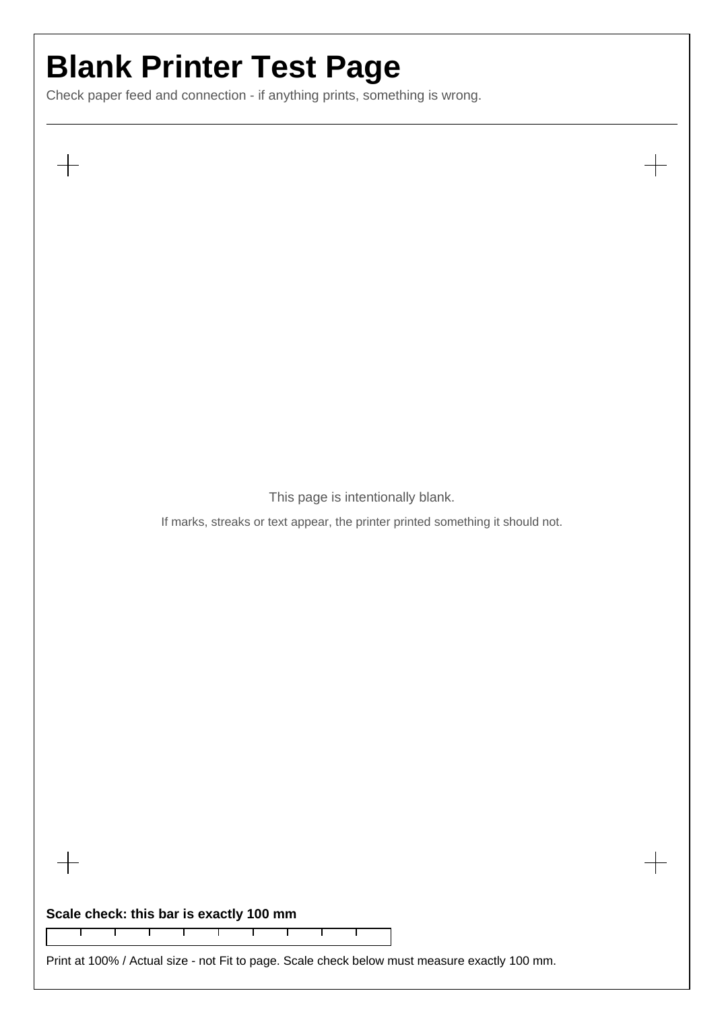
Print at 100% / Actual size. Works with HP, Canon, Epson and Brother, on Windows, Mac, Android and iOS.
What Does a Blank Test Page Check?
Paper feed
The sheet proves the printer can pick up a page, move it through the machine and eject it cleanly. A page that feeds straight and comes out undamaged means the rollers, the paper path and the output tray are all working.
Printer connection
If the sheet prints at all, the printer is receiving jobs from your computer, phone or tablet. A blank test page is the fastest way to confirm the connection after Wi-Fi, USB or driver changes.
Registration crosses
The crosses in the corners and the centre show whether the page is printed square and in the right place. A cross that is cut off or skewed means the paper is loaded crooked or the margins are wrong.
Scale and thin line
The 100 mm scale bar and the hairline rule check that the printer prints at true size. Measure the bar with a ruler: if it is not 100 mm long, the driver is scaling the page.
If the sheet comes out clean, with the crosses in the corners and the scale bar measuring exactly 100 mm, your printer’s feed and alignment are fine. If the sheet comes out marked, smudged or skewed, the marks themselves point to the fault. A line means a dirty roller or a leaking cartridge, and a skew means the paper guides are loose. When you need to check the ink itself rather than the feed, use the Black & White Test Page, which prints solid black, grey steps and fine text.
How to Read Your Blank Test Page
Completely blank sheet
This is the result you want. A perfectly blank sheet means the paper feed, the connection and the page alignment are all working, and nothing is leaking, smudging or dragging across the paper.
Faint marks or smudges
Grey smudges or faint lines mean a dirty roller, a leaking cartridge or toner spilled inside the printer. Clean the rollers and the paper path, then print the sheet again.
A printed line or patch
A sharp line or a solid patch means the printer is putting ink or toner on the page when it should not. Check the cartridge for leaks, run a cleaning cycle and check the driver is not set to print a test pattern.
The page never comes out
If nothing feeds at all, the printer is not receiving the job or the paper is not loading. Check the connection, the paper tray and the queue, then try again.
When Should You Print a Blank Test Page?
Print a blank test page when you set up a new printer, after a paper jam, when the printer feeds paper but prints nothing, after moving the printer to a new desk, or after a Wi-Fi, USB or driver change. It is also the first sheet to print when a document comes out blank: if this sheet feeds cleanly, the problem is the document or the driver, not the paper path. Print one before a long print run too. A clean blank sheet means the feed is ready for the job. For more formats and paper sizes, see the Printer Test Page PDF hub.
How to Print a Blank Test Page
Online (fastest): press the Print button at the top of this page, choose your printer, set 100% / Actual size and A4 or US Letter, then print. The sheet should come out blank. If it comes out marked, run a nozzle check next. You can also print a blank page from your printer’s own panel: on most HP, Canon, Epson and Brother machines, load plain paper and print a blank document from any app. For more formats and paper sizes, see the Printer Test Page PDF hub. Start from the homepage if you need a different test sheet.
Blank Test Page vs Nozzle Check
A blank test page and a nozzle check are both diagnostic sheets, but they test different things, and they are used at different points in a fault-finding routine. The blank sheet tests the paper feed, the connection and the alignment of the page. A nozzle check tests the print head itself: it prints a small pattern from every nozzle so you can see which ones are blocked. Use the blank sheet first, when you want to know whether the printer can feed and print at all; use the nozzle check when you already know the printer feeds paper and you need to find a blocked nozzle.
Blank test page
A blank test page is almost entirely empty. It has registration crosses in the corners, a hairline rule and a 100 mm scale bar, and nothing else. It uses almost no ink or toner, and it answers one question: can this printer feed a page and put it in the right place? If the sheet comes out clean, the feed is fine. If it comes out marked, the marks tell you where the problem is. A smudge near the edge points to a dirty roller, a line across the middle points to a leaking cartridge.
Nozzle check
A nozzle check prints a small grid or staircase pattern using every nozzle on the print head, in each colour. It uses ink, and it answers a different question: is every nozzle firing? If a nozzle is blocked, its line in the pattern is missing or broken, and you run a head cleaning. The nozzle check is the right tool when text or images print with white lines, missing colours or faded bands. If you want to judge ink and colour rather than the paper feed, the Black & White Test Page is the fuller check.
Which one should you use first?
Use the blank test page first. It is the quicker and cheaper check: it takes seconds, uses no ink, and tells you whether the printer can feed paper at all. If the blank sheet feeds cleanly, print a nozzle check to test the print head. If the blank sheet jams, skews or never appears, fix the feed first. A nozzle check cannot help a printer that will not feed paper.
- Blank test page: almost empty, tests feed, connection and alignment. Use it first.
- Nozzle check: prints a pattern from every nozzle. Use it when the feed is fine but print is missing or banded.
- Black and white test page: solid black, grey steps and fine text on one sheet. Use it for a full ink and print quality check.
Problems and Fixes
Most blank page faults show up in one of four ways, and each one has a different cause. Read the sheet, match what you see to the box below, and work through the fix in order. Most of them take under five minutes.
Nothing prints at all
The printer feeds paper but nothing appears on it, or nothing feeds at all. Check the cartridge is not empty, the driver is not set to print blank pages, and the printer is not paused or offline. Then print this sheet again.
Marks or smudges
Grey smudges, lines or fingerprints on a sheet that should be blank usually mean dirty rollers or a leaking cartridge. Clean the rollers with a lint-free cloth, wipe the cartridge contacts and print the sheet again.
The page skews or jams
A sheet that comes out crooked or jammed means the paper guides are loose, the paper is damp or curled, or a torn scrap is stuck in the paper path. Square the guides to the paper, load fresh dry paper and check for debris.
Several pages feed at once
Two or three pages feeding together usually mean damp or statically charged paper, or worn separation rollers. Fan the stack, load fewer sheets and keep the paper in a dry place. If it keeps happening, the rollers need replacing.
Blank Page Problems by Brand: HP, Canon, Epson and Brother
A blank test page behaves the same on every brand, but the way you print one, and the way you fix a blank print, is slightly different. Use the steps below for your brand, and remember that a printer test page that is blank usually means the ink, the toner or the driver, not the paper.
HP
On HP printers, open the print dialogue, choose your HP printer, then open Preferences or Properties and check the paper size is A4 or US Letter and the quality is Normal. If the sheet comes out blank when it should not, check the ink or toner level in HP Smart or on the printer’s display, then run a printhead cleaning from the printer’s Tools menu. On HP LaserJet models, a blank print often means the toner cartridge seal was never removed or the toner is empty.
Canon
On Canon printers, open the printer driver, go to the Main tab and check the media type is Plain Paper and the print quality is Standard. If the page comes out blank, check the ink tanks on the printer’s display and run a nozzle check from the Maintenance tab, followed by one cleaning cycle. On Canon PIXMA models, a blank print after a cartridge change usually means the protective tape is still on the cartridge.
Epson
On Epson printers, open the print dialogue, choose your Epson printer, then open Preferences and check the paper size and the quality setting. If the sheet prints blank, check the ink levels in Epson Status Monitor and run a nozzle check from the Maintenance tab. Epson EcoTank printers that print blank pages after a refill usually need a power cleaning, which uses more ink, so run a normal cleaning first.
Brother
On Brother printers, open the print dialogue, choose your Brother printer, then open Printing Preferences and check the paper size and the print quality. If the page comes out blank, check the toner or ink level on the printer’s display and run a cleaning cycle from the Ink or Maintenance menu. On Brother laser printers, a blank print often means the drum unit is at the end of its life or the toner cartridge is empty.
Printer test page is blank: empty cartridge
When the solid areas of a normal document print blank, check the ink or toner level first. On an inkjet, a cartridge that is empty or has an airlock will feed paper and print nothing at all; replace the cartridge, or run a cleaning cycle to clear the airlock. On a laser printer, a blank page usually means the toner cartridge is empty or its seal was never pulled out. Remove the cartridge, check the seal and rock it gently side to side to spread the remaining toner.
Dried or blocked nozzles
Nozzles dry out when a printer is left unused for weeks, especially in a warm room. A dried nozzle prints nothing, so the page comes out blank even though the cartridge has ink. Run the printer’s nozzle check: if lines are missing, run one head cleaning cycle, wait a few minutes and check again. Never run more than two or three cleaning cycles in a row. They use a lot of ink and can flood the print head.
Wrong paper or driver setting
A blank page is sometimes a setting, not a fault. Check the driver is not set to print a blank page or a separator page, that the paper size matches the paper in the tray, and that the quality is not set to Draft with the wrong paper type. If you printed from a phone or tablet, check the app’s print settings too. Some apps add a blank page at the end of a document. Print this sheet from a computer to rule the app out.
Blank page vs no print at all
A blank page and no print at all are different faults. A blank page means the printer received the job, fed the paper and printed nothing. The cause is usually the cartridge, the nozzles or the driver. No print at all means the printer never received the job: the printer is offline, paused, out of paper, or the job is stuck in the queue. Check the printer’s display and the print queue first; if the job is there and the printer is ready, print this blank sheet to test the feed.
Frequently Asked Questions

Louis Burton
Louis Burton has spent more than 10 years working with printers, and he still enjoys it. He runs his own printing shop in Pensacola, Florida, where he prints, services and troubleshoots inkjet and laser printers from HP, Canon, Epson and Brother every day. Louis started Printer Test Page to share the test sheets and checks he uses in the shop, so anyone can find out in one minute whether a printer is healthy or exactly which part of it needs attention.